Your accountant sent you a message asking for your bank statement in Excel. You stared at it for a moment, unsure what exactly they mean. You have your bank statement, it's a PDF sitting in your downloads folder or in your email inbox. Isn't that the same thing?
It's not. And if you've searched "How to convert PDF Bank Statement into Excel?", you're one of thousands of people every month who hit this exact moment of confusion. This guide explains what your accountant actually means, why they need it in that format, and the fastest way to give them exactly what they're asking for, even if you have no idea what Excel is.
What Your Accountant Actually Means
When your CA, bookkeeper, or accountant says they want your bank statement "in Excel," they mean they want your transaction data in a format they can work with, not just read.
A PDF bank statement is like a photograph of your financial data. It looks exactly like the original document, every number is visible, and it's perfectly readable by a human. But an accountant can't calculate with a photograph. They can't sort transactions, apply formulas, filter by category, reconcile entries, or import the data into their accounting software.
An Excel file, or a CSV file, which is essentially the same thing for this purpose, is the actual data behind that photograph. It's structured in rows and columns, where each transaction is its own row, and each piece of information (date, description, amount, balance) sits in its own cell. That structure is what makes it possible to work with the data, not just look at it.
So when your accountant asks for Excel, they're asking you to give them working data, not a document.
Why Accountants Need Bank Statements in Excel, Not PDF
This is worth understanding properly, because it explains why your accountant isn't just being difficult.
Reconciliation. Your accountant needs to match every transaction on your bank statement against the entries in your accounting records. Doing this manually from a PDF, scrolling through pages of transactions, finding each one in a separate system, is slow and error-prone. In Excel, they can use VLOOKUP or simple filters to match thousands of transactions in minutes.
Categorisation. For tax filing, every expense needs to be assigned a category, office supplies, travel, professional fees, and so on. In Excel, your accountant can add a category column and sort or filter transactions by type. In a PDF, they're reading and typing manually.
Importing into accounting software. Tools like QuickBooks, Tally, Zoho Books, Xero, and FreshBooks all accept CSV or Excel imports. Once your accountant has your bank statement in Excel, they can import the entire thing into their software in one step. From a PDF, they'd have to enter each transaction by hand, which for a year's worth of activity could mean hundreds of manual entries.
Spotting patterns and anomalies. Excel lets your accountant quickly identify duplicate transactions, unusual amounts, or missing entries by sorting and filtering. A PDF shows them the same data in fixed order with no ability to reorganise it.
In short: your accountant isn't asking for Excel because they prefer a particular file type. They're asking because it's the only format that lets them actually do their job efficiently.
Why You Can't Just "Send the PDF"
A common response to this situation is: "Can't they just get the information from the PDF? It's all there."
Technically, yes, all the information is in the PDF. But consider what your accountant would have to do with it:
For every single transaction on your statement, they'd need to manually read the date, type out the description, type the amount, confirm whether it's a debit or credit, and enter it into their software. For a three-month statement with 200 transactions, that's easily four to six hours of data entry, time they'll bill you for, time where errors creep in, and time that could be spent on actual financial analysis.
The PDF is fine for your records. For your accountant's workflow, it's the wrong tool entirely.
What About Just Emailing the Bank Statement?
Some banks let you download a CSV or Excel file directly from their online portal. If yours does, great. Log in, find the download or export option, select the date range your accountant needs, and download the file.
The problem is that many banks don't offer this, limit the date range you can export, or produce CSV files with inconsistent formatting that still need cleanup before they're useful. And if your bank only provides PDF statements, which is the case for a large number of customers, you're back to the same problem.
The Fastest Solution: Convert Your PDF to Excel in Under a Minute
If your bank doesn't give you a ready-made Excel file, the solution is to convert your existing PDF bank statement into Excel using an AI-powered converter.
This is exactly what AIBankStatement does, and it takes less than 60 seconds.
You don't need to understand how it works technically. The simple version: you upload your PDF bank statement, the AI reads every transaction on every page, and it hands you back a clean Excel or CSV file with proper columns and one row per transaction. That file is exactly what your accountant is asking for.
Step-by-Step: How to Send Your Accountant What They Need
-
Find your bank statement PDF. Log into your bank's website or app and download your statement as a PDF, look for "Statements," "eStatements," or "Documents." Save it to your device.
-
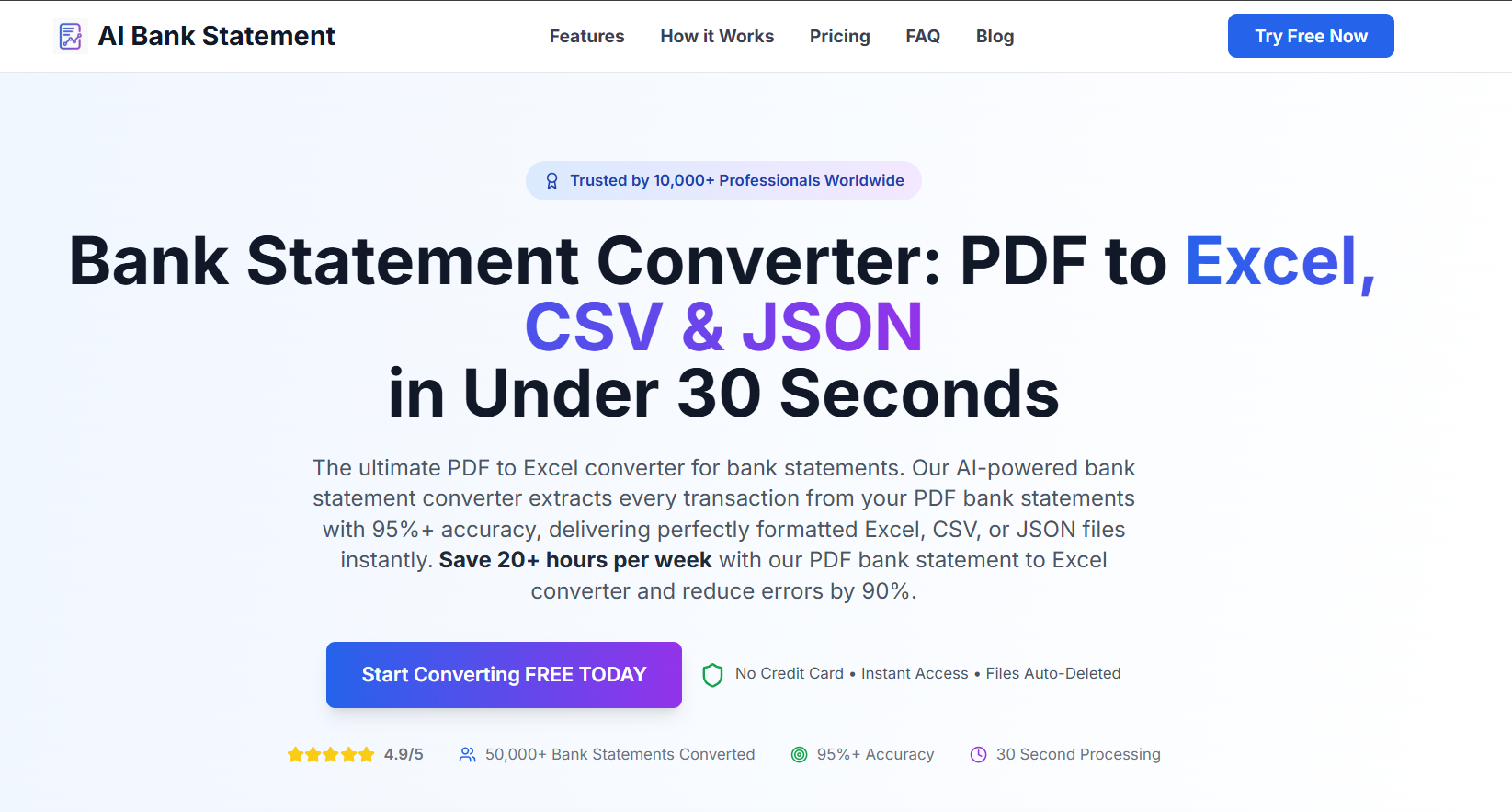
Go to AIBankStatement. Account sign-up needed. Click the upload button on the homepage.
-
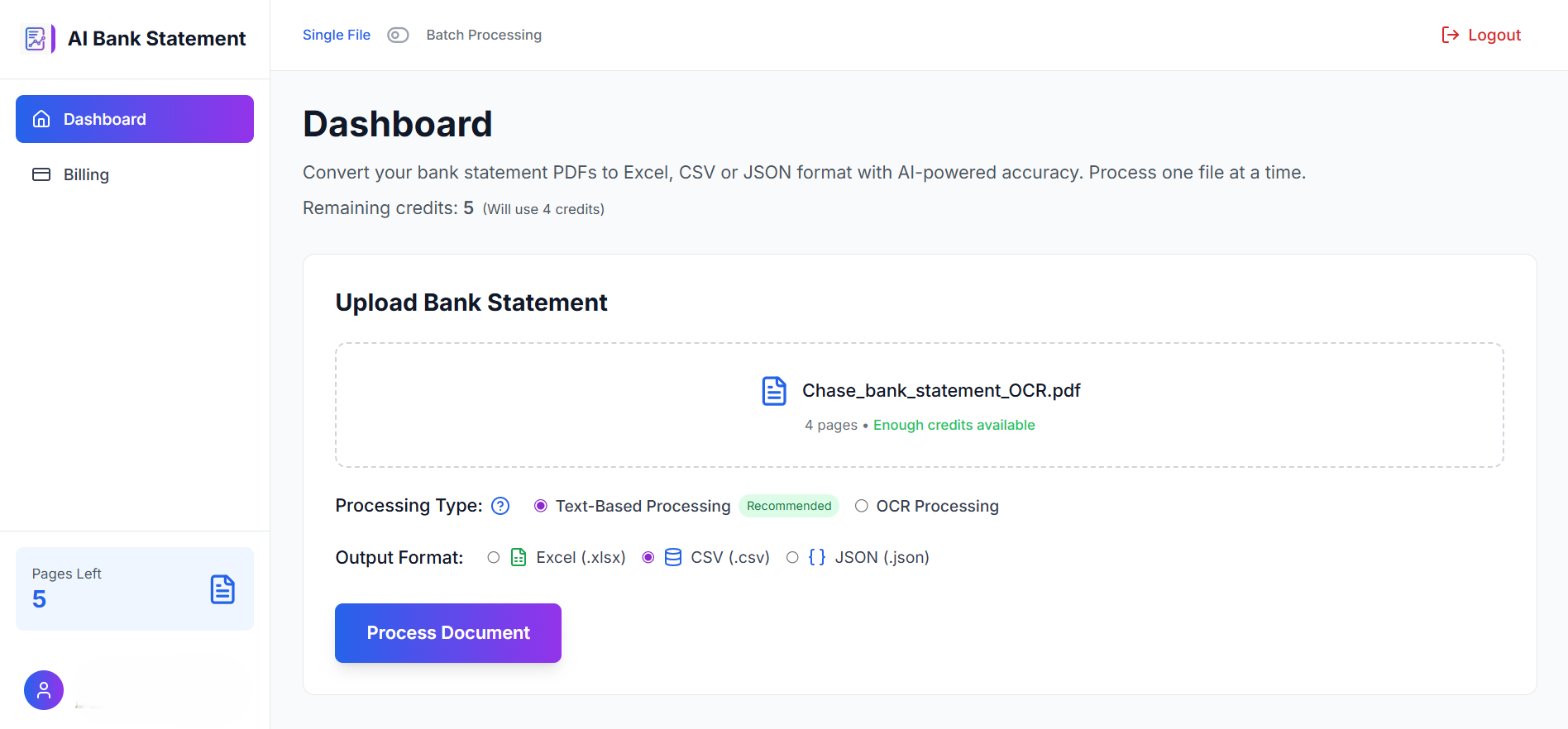
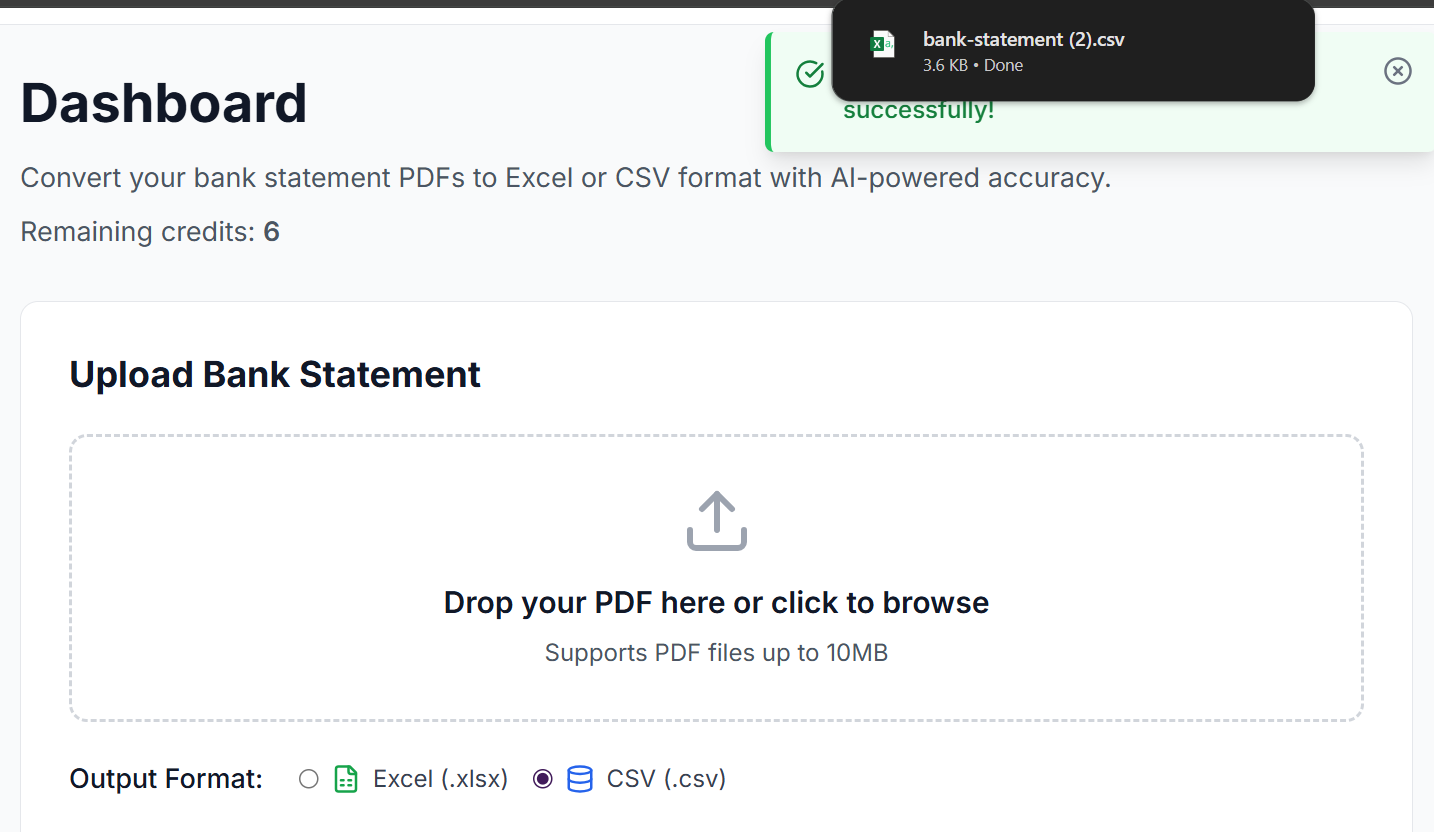
Upload your PDF. Drag and drop the file or click to browse. The AI will process it, this usually takes 15 to 45 seconds depending on the length of the statement.
-
Download your Excel or CSV file. Once the conversion is complete, download the structured file to your device.
-
Email the file to your accountant. Attach the Excel or CSV file to your email, not the PDF. Your accountant will have exactly what they asked for.
That's the whole process. No technical knowledge required. No special software to install.
What the Excel File Will Look Like
When you open the converted file, you'll see a spreadsheet with clean column headers, typically Date, Description, Debit, Credit, and Balance, and one transaction per row. It will look something like this:
| Date | Description | Debit | Credit | Balance |
|---|---|---|---|---|
| 01 Mar 2025 | Opening Balance | — | — | 12,450.00 |
| 03 Mar 2025 | Amazon.in | 1,299.00 | — | 11,151.00 |
| 05 Mar 2025 | Salary Credit | — | 85,000.00 | 96,151.00 |
| 07 Mar 2025 | Electricity Bill | 2,340.00 | — | 93,811.00 |
Your accountant can open this file, import it into their software, add categories, and run reconciliations immediately, without typing a single number.
A Note for Those Working With a CA in India
If you're working with a Chartered Accountant in India, this request is extremely common, particularly during ITR filing season (July – August) and for GST reconciliation. Your CA needs your bank statement data in Excel to:
-
Reconcile your bank entries with your books of accounts under Schedule BA (Bank Account details)
-
Verify TDS credits and advance tax payments
-
Cross-check income credits against Form 26AS
-
Identify expenses that may qualify for deductions under relevant sections
Indian banks, including SBI, HDFC, ICICI, Axis, Kotak, and others, all provide PDF statements through their net banking portals.
The Bottom Line
When your accountant asks for your bank statement in Excel, they're asking for your transaction data in a format they can calculate, sort, filter, and import into accounting software, not just read. A PDF bank statement, despite containing all the same numbers, doesn't allow them to do any of that efficiently.
The fastest way to give your accountant exactly what they need is to convert your PDF bank statement to Excel using AIBankStatement. It takes under a minute, requires no technical knowledge, and works with statements from any bank.
Stop the back-and-forth with your accountant. Convert your statement now and send them what they asked for.
🔗 Your CA Asked for Excel. Here It Is.
Upload your bank statement PDF and download a clean, structured Excel file in under 60 seconds, ready to send to your accountant today. Paid plans include monthly page credits.
→ Convert Your Bank Statement Free at aibankstatement.com
Frequently Asked Questions
Q1: My accountant asked for "last 6 months" in Excel, do I need to upload six separate PDFs?
A1: Yes, the cleanest approach is to download and upload one monthly statement PDF at a time, then combine the six resulting Excel files into a single spreadsheet. This takes about five extra minutes and produces much cleaner output than trying to merge multi-month PDFs before uploading. Once you have all six sheets, simply copy all rows into one master sheet, your accountant will have everything in a single file.
Q2: Is a CSV file the same as an Excel file? My accountant said either is fine.
A2: For practical purposes, yes. A CSV (Comma-Separated Values) file contains the same transaction data as an Excel file but in a simpler format without formatting, colours, or formulas. Both open directly in Excel and Google Sheets. If your accountant said either is fine, download the CSV, it's slightly smaller and imports more cleanly into accounting software like QuickBooks, Tally, or Xero.
Q3: Will my accountant be able to tell I used a converter instead of exporting directly from my bank?
A3: No. The converted Excel file contains the same transaction data that would appear in a bank-exported file. There's no watermark, no converter signature, and no indication in the file that it came from a PDF. Your accountant will see a clean spreadsheet with dates, descriptions, and amounts, identical in structure to a direct bank export.
Q4: My bank statement PDF is password-protected. Can I still convert it?
A4: Most bank-issued password-protected PDFs use a simple open password (often your date of birth or registered mobile number). You'll need to open the PDF first, using Adobe Reader or your browser, which unlocks it for viewing. Once unlocked, save or print it as a new PDF without the password, then upload that version to AIBankStatement. Alternatively, some converters can accept a password at upload time.
Q5: My accountant wants bank statements from two different banks, HDFC and SBI. Does AIBankStatement work for both?
A5: Yes. AIBankStatement works with PDF statements from any bank, Indian or international. HDFC, SBI, ICICI, Axis, Kotak, and all other major Indian banks produce statements in PDF formats that the AI handles accurately. Simply upload each bank's PDF separately, download the two Excel files, and send both to your accountant. If they want everything combined, you can merge the two sheets into one master file in Excel or Google Sheets.