You've tried downloading your Chase bank statement three times. The file won't open. Or the download spins forever and then silently fails. Or you get a CSV that's completely empty. Or Chase.com throws an error the moment you click the export button.
If you've searched "Chase statement download not working fix", you're in the right place, and you're far from alone. Chase's statement download feature has been a persistent frustration for customers across checking accounts, savings accounts, and credit cards. The good news: there are four ways to actually get your transaction data out, and at least one of them will work for you right now.
Why Does Chase's Statement Download Keep Failing?
Before the fixes, a quick look at why this happens, because understanding the cause helps you pick the right solution faster.
Browser compatibility issues. Chase's web portal has known conflicts with certain browsers and browser versions. A download that works fine in Chrome might silently fail in Firefox or Safari. Extensions, ad blockers, and privacy tools frequently interfere with Chase's file generation process without showing any error message.
Session timeouts during export. Chase's portal logs you out after a period of inactivity. If you've been browsing around before attempting a download, your session may have silently expired, meaning the export request gets processed against an invalid session token and returns nothing.
Date range limitations. Chase restricts how far back you can download in a single request. Requesting more than a few months at once often causes the export to fail entirely rather than returning partial data. Many users don't realise the limit exists until they've tried five times with the same large date range.
File format conflicts. Chase offers multiple download formats: OFX, QFX, CSV, and PDF. Some formats fail silently depending on your account type or the date range selected. A QFX file that works for one account may not generate at all for another.
Server-side glitches. Chase's download infrastructure simply has outages and bugs, sometimes lasting hours or days. If the problem appeared suddenly with no changes on your end, this is often the explanation, and waiting it out is unfortunately the only fix.
"I've been trying to download my Chase transactions for a week. The CSV comes back empty every time. Called support and they told me to try a different browser. Tried four browsers. Nothing. Completely useless."
This is a real experience shared across Chase customer forums. The technical support response "try a different browser" rarely fixes the underlying issue, especially when the problem is server-side or account-specific.q
Fix 1: Switch Browsers and Disable Extensions
It's the most basic fix, and it genuinely works for a meaningful percentage of cases, so start here before spending time on anything else.
Use Google Chrome in an Incognito window. Incognito disables all extensions by default, which eliminates interference from ad blockers, privacy tools, VPNs, and download managers that can silently intercept or block Chase's file generation.
Step by step: Open Chrome → press Ctrl+Shift+N (Windows) or Cmd+Shift+N (Mac) to open an Incognito window → log into chase.com fresh → navigate to your account → go to the download transactions section → attempt the export.
If this works, the culprit was a browser extension. Re-enable extensions one at a time to identify which one was causing the conflict.
If it doesn't work in Incognito Chrome, move to Fix 2.
Fix 2: Narrow Your Date Range Dramatically
Chase's download feature has an undocumented limit on how much data it can generate in a single export. If you're requesting 6 months, 12 months, or "all history", that's likely why the download fails or returns an empty file.
Try requesting just 30 days at a time. This is the most reliable date range for Chase exports. If 30 days works, export month by month and combine the files afterward.
If you need a full year of data, that means 12 separate downloads, tedious, but functional. Once you have all 12 CSV files, you can consolidate them in Excel or Google Sheets in a few minutes using a simple copy-paste or a Power Query append.
This fix resolves the issue for a large number of users who assumed the problem was something more complex.
Fix 3: Switch the Download Format
If the CSV download isn't working, try a different format. Chase offers several export options:
- CSV - plain text, works in Excel and Google Sheets directly
- QFX - Quicken format, works in Quicken and some accounting software
- OFX - Open Financial Exchange, works in many finance apps
- PDF - always available, cannot be "turned off" by technical issues
Here's the important thing: PDF is the most reliable format Chase will always deliver. It doesn't go through the same file-generation pipeline as CSV or QFX. It's rendered server-side as a static document and almost never fails.
If every other format is broken, the PDF will work. And critically, a PDF bank statement is not a dead end. More on that in Fix 4.
To try different formats if available: Log into chase.com → select your account → choose "Download account activity" → look for the format selector dropdown before clicking download.
Fix 4: Download the PDF and Convert It - Skip Chase's Export Entirely
This is the fix that works regardless of what's broken on Chase's end, because it completely bypasses their download infrastructure.
Here's the logic: Chase's statement PDFs are generated by a completely separate system from their CSV/QFX export tool. The PDF is a static document, it doesn't require the same server processes, session handling, or format conversion that cause CSV exports to fail. The PDF almost always downloads successfully, even when everything else is broken.
Once you have the PDF, the old problem was that you couldn't do anything useful With it, it wasn't a spreadsheet. That's where AIBankStatement.com comes in.
Upload your Chase statement PDF and the AI extracts every transaction, date, description, amount, balance, and outputs a clean, structured Excel or CSV file in under 60 seconds. No manual cleanup. No fighting with Chase's export tool.
How to Do It Right Now
-
Log into chase.com and go to your account page
-
Navigate to Statements - look for "Statements & Documents" or "eStatements" in the account menu
-
Download the PDF statement for the month or period you need, this almost never fails
-
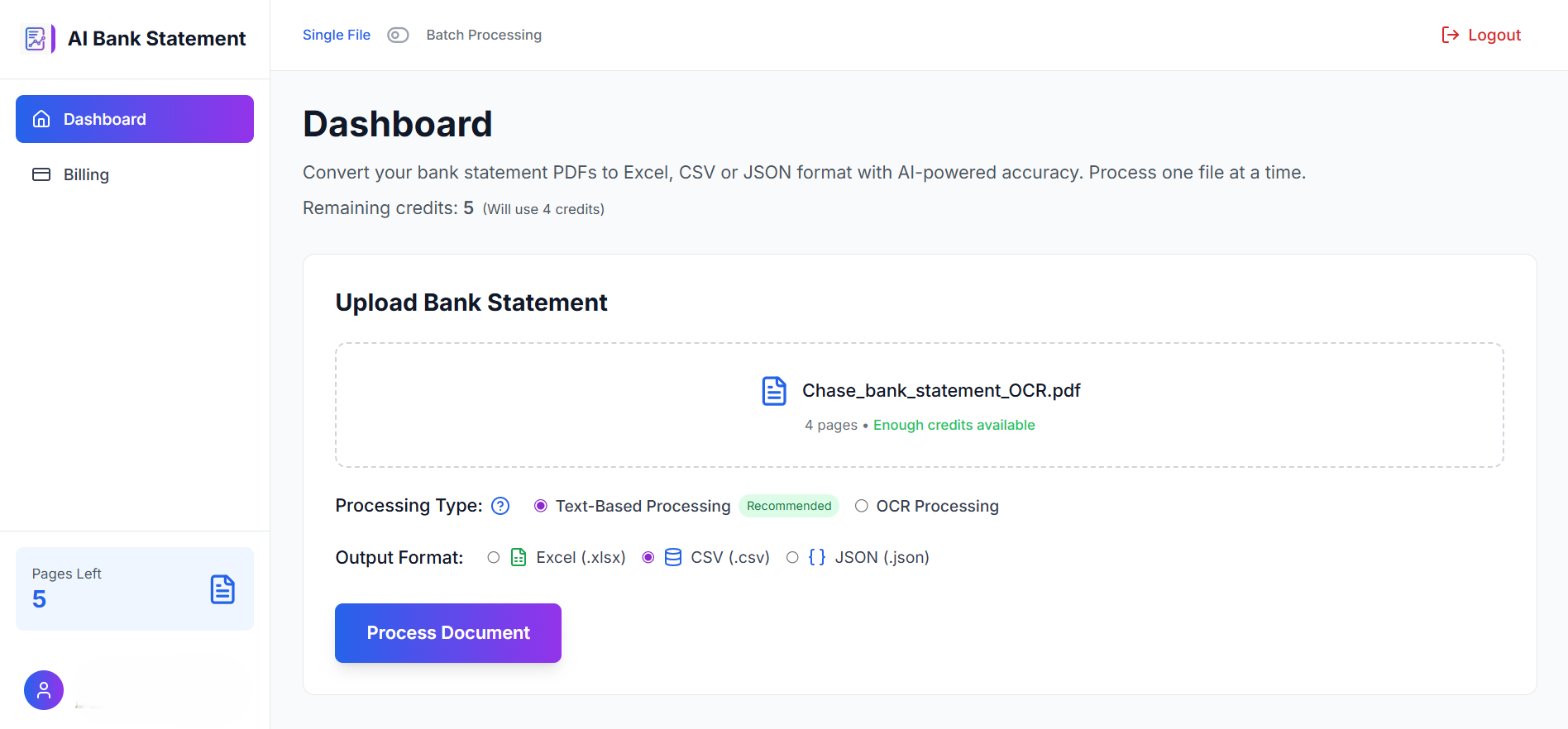
Go to AIBankStatement.com and upload the PDF
-
Download your clean Excel or CSV file - done in under a minute
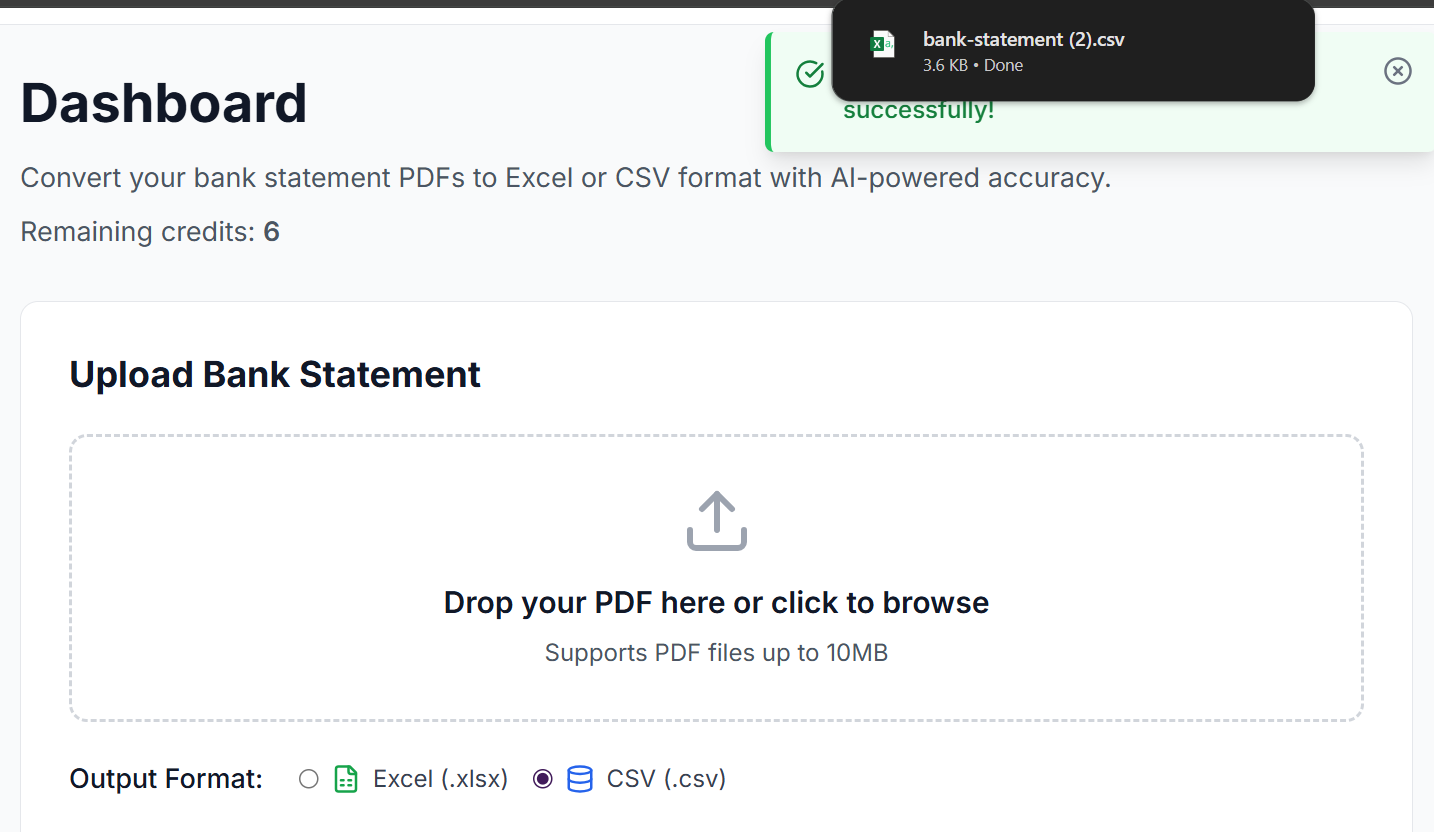
For multiple months, download each monthly statement PDF separately, convert each one, then combine the resulting files in a spreadsheet.
This approach also gives you something Chase's CSV export doesn't: a permanent, readable copy of your statement alongside your structured data. You keep the PDF for records and use the converted file for analysis.
Comparison: Which Fix Works for Which Problem
| Your Situation | Best Fix |
|---|---|
| Download fails in one browser | Fix 1 - try Chrome Incognito |
| Large date range, empty file | Fix 2 - narrow to 30-day windows |
| CSV fails but other formats available | Fix 3 - switch to PDF, QFX or OFX |
| Everything fails, nothing downloads | Fix 4 - PDF + AIBankStatement |
| Need clean Excel output, not raw CSV | Fix 4 - PDF + AIBankStatement |
| Scanned or old statements | Fix 4 - PDF + AIBankStatement |
When to Contact Chase Support (And What to Say)
If Fixes 1–3 all fail and you want to pursue it directly with Chase before trying Fix 4, here's how to get a useful response from their support team rather than a generic "clear your cache" reply.
Be specific about the format and date range. Tell them: "I'm attempting to download a CSV of my checking account transactions for [specific date range] from chase.com on Chrome, and the file either fails to generate or downloads as empty. This has happened across multiple browsers and sessions."
Specific bug reports get escalated more quickly than vague complaints. Ask them to log it as a technical issue with your account, not just a general browser problem.
That said, Chase's technical support response time for export issues can stretch to days or weeks. If you need your data now, Fix 4 gets you there in under two minutes while you wait for Chase to sort their backend.
One More Thing: Why This Problem Keeps Coming Back
Even if you fix the Chase download issue today, there's a reasonable chance you'll hit it again next month. Chase's export tool has been inconsistently reliable for years. Customer complaints about empty CSV downloads, failed QFX exports, and broken date-range selectors appear regularly across Reddit, Chase's own community forums, and financial software help boards.
The underlying issue is that Chase's data export feature is genuinely lower-priority infrastructure for a bank whose main product is banking, not data portability. It works well enough most of the time, but it isn't maintained with the same rigour as the core banking platform.
Building a PDF-first workflow with AIBankStatement.com is the permanent solution, because the PDF download never breaks, and the conversion is always reliable. You stop being dependent on Chase's export tool entirely.
The Bottom Line
Chase's statement download tool fails for a handful of well-understood reasons, browser conflicts, session timeouts, date range limits, and plain server-side bugs. Four fixes cover almost every scenario:
- Chrome Incognito - eliminates extension interference
- 30-day date windows - bypasses the undocumented range limit
- Switch to QFX/OFX - tries a different export pipeline
- PDF + AIBankStatement - works every time, regardless of what's broken
If you need your data right now and don't want to spend another hour troubleshooting Chase's portal, Fix 4 is the fastest path. Download the PDF, which always works, and convert it to clean Excel in under a minute.
🔗 Done Waiting for Chase to Fix Its Download?
Upload your Chase PDF statement and get a clean, structured Excel or CSV file in under 60 seconds. No login to Chase required. No empty files. No broken exports.
→ Try It Free at aibankstatement.com
FAQs
Q1: Why does my Chase CSV download keep coming back empty?
A1: The most common cause is an overly large date range. Chase's export tool has an undocumented limit on how much transaction data it can process in a single request. Try narrowing your date range to 30 days at a time, this resolves the empty file problem for the majority of affected users.
Q2: Does Chase's statement download work better on certain browsers?
A2: Chrome tends to be the most compatible browser for Chase's portal. More specifically, Chrome in Incognito mode, which disables all extensions, eliminates interference from ad blockers, VPNs, and privacy tools that silently intercept Chase's file generation without displaying any error. If you haven't tried Incognito Chrome, do that first.
Q3: What's the difference between Chase's CSV, QFX, and OFX download formats?
A3: CSV is a plain text file that opens in any spreadsheet. QFX is Quicken's proprietary format, compatible with Quicken and some accounting software. OFX is an open standard used by many finance apps. If one format fails, try another, they use different generation pipelines on Chase's server and one may succeed where another fails.
Q4: How far back can I download Chase transaction history?
A4: Chase typically allows transaction history downloads going back 7 years for most account types, but the further back you go, the more likely the export is to fail. For older history, Chase's eStatements, available as PDFs, are more reliably accessible and can be converted to structured data using aibankstatement.com.
Q5: Is uploading my Chase PDF statement to AIBankStatement secure?
A5: Yes. You're uploading a PDF document, not connecting your Chase account, not sharing login credentials, and not authorising any ongoing access. The PDF is processed to extract transaction data and then deleted. You retain full control of your account and your data throughout the process.