You opened your bank statement PDF in Excel expecting neat rows and columns. Instead, you got a disaster, numbers floating in random cells, transaction descriptions split across three rows, dates merged with amounts, and balances stacked on top of each other like a pile-up.
If you've searched "bank statement PDF scrambled in Excel fix", you're not doing anything wrong. This is one of the most common frustrations in personal finance and small business bookkeeping, and it has a surprisingly simple explanation. More importantly, it has a real fix.
Why Does a Bank Statement PDF Look Scrambled in Excel?
Before we fix the problem, it helps to understand why it happens. The answer lies in how PDF files are built, and how Excel tries (and fails) to read them.
PDFs Are Not Spreadsheets
A PDF is not a table. It's a visual layout document, essentially a precise set of instructions that tells your screen or printer exactly where to place each character, line, and box on a page. When a bank generates your statement as a PDF, it doesn't store data in rows and columns. It stores coordinates: "place the text '14 Mar' at position X=72, Y=340."
Excel doesn't understand coordinates. When you drag a PDF into Excel or use the built-in "Get Data from PDF" feature, Excel has to guess which pieces of text belong together as a row, which numbers are amounts vs. balances, and where one transaction ends and the next begins. It almost always guesses wrong.
Three Reasons the Scrambling Happens
1. Text positioning without structure. PDFs place each word independently on the page. "Amazon Prime" might be stored as "Amazon" at one coordinate and "Prime" at another. Excel sees two separate text fragments and puts them in different cells.
2. Multi-line transaction descriptions. Banks often wrap long merchant names or reference numbers across two or three lines. Excel reads each line as a separate row, completely breaking the transaction structure.
3. Columns that don't align to a grid. Bank statement columns, Date, Description, Debit, Credit, Balance, are visually aligned in the PDF but not mathematically gridded. Excel's column detection fails, merging values that belong in separate columns or splitting values that belong together.
The result? A scrambled, unusable mess that takes hours to manually fix, if you even can.
"I spent two hours trying to clean up a three-month bank statement in Excel after importing the PDF. Half the amounts were in the wrong column, the dates were all over the place, and some rows were completely blank. Never again."
This is the experience of thousands of people who try to open a bank statement PDF directly in Excel every single day.
The "Copy-Paste" Problem Is Just As Bad
Maybe you didn't use Excel's import feature. Maybe you opened the PDF in Adobe Reader or your browser, selected all the text, and pasted it into Excel. Same result, sometimes worse.
When you copy text from a PDF, you're copying those raw positional fragments in the order they appear in the file's internal structure, which is not necessarily left-to-right, top-to-bottom reading order. You might paste a column of dates, then a column of balances, then all the descriptions, completely separated from each other with no way to reunite them.
This approach also strips all formatting context, so there's no way to tell where one transaction row ends and the next begins.
What About Excel's Built-In "Get Data from PDF" Feature?
Microsoft added native PDF import to Excel in 2021, and it sounds promising. In practice, for bank statements specifically, it's deeply unreliable.
It works reasonably well for simple, structured tables, think a one-page report with a clear header row and consistent data. Bank statements are not that. They have:
- Headers repeated across multiple pages
- Running balance columns that confuse the row detector
- Footer text (branch addresses, IFSC codes, legal disclaimers) that gets pulled into the data
- Page numbers that appear inside the imported table
- Varying column widths across statement types from different banks
The output from Excel's PDF import is usually slightly less scrambled than copy-pasting, but still not usable without significant manual cleanup. For anything longer than 10–15 transactions, it's not a viable solution.
Why OCR Makes It Even Worse
If your bank statement PDF is a scanned document, meaning a physical statement that was photographed or scanned into a PDF rather than digitally generated, the problem compounds dramatically.
Scanned PDFs contain no text at all. They're just images. To extract any data, you need OCR (Optical Character Recognition) software to first read the image and convert it to text. Consumer OCR tools frequently:
- Confuse 0 (zero) with O (letter O), or 1 with l (lowercase L)
- Misread handwritten notes or stamps on statements
- Struggle with low-contrast ink, faded text, or skewed scans
- Fail entirely on tables with thin ruling lines
The result is garbled numbers, which is catastrophic when you're dealing with financial data. A misread digit in a balance figure isn't just annoying; it's a bookkeeping error.
The Real Fix: Use an AI-Powered Bank Statement Converter
The reason all the above methods fail is that they're using general-purpose tools on a specialised problem. Excel is a spreadsheet tool. Copy-paste is a text tool. Neither was built to understand the specific structure of a bank statement.
AIBankStatement was built for exactly this problem. Here's what makes it different:
It understands bank statement layouts specifically. The AI is trained on the structure of bank statements, not generic tables. It knows that a date column comes before a description, that debits and credits are separate columns, that running balances follow a predictable pattern. It uses this domain knowledge to extract data accurately, even when the PDF layout is complex or inconsistent.
It handles multi-line descriptions correctly. When a merchant name wraps across two lines, the AI recognises that both lines belong to a single transaction row and combines them, rather than treating them as two separate entries.
It works on scanned PDFs too. For image-based PDFs, the AI applies high-accuracy OCR that's been fine-tuned for financial documents, distinguishing between similar characters correctly and validating numbers against expected balance progressions.
The output is genuinely clean. Not "needs-some-cleanup" clean. Actually clean, proper headers, one transaction per row, dates in a consistent format, amounts as true numbers (not text), and nothing in the wrong column.
How to Use It: Three Steps
-
Download your bank statement PDF from your bank's statements section. The official digitally-generated version gives the best results, though scanned documents work too.
-
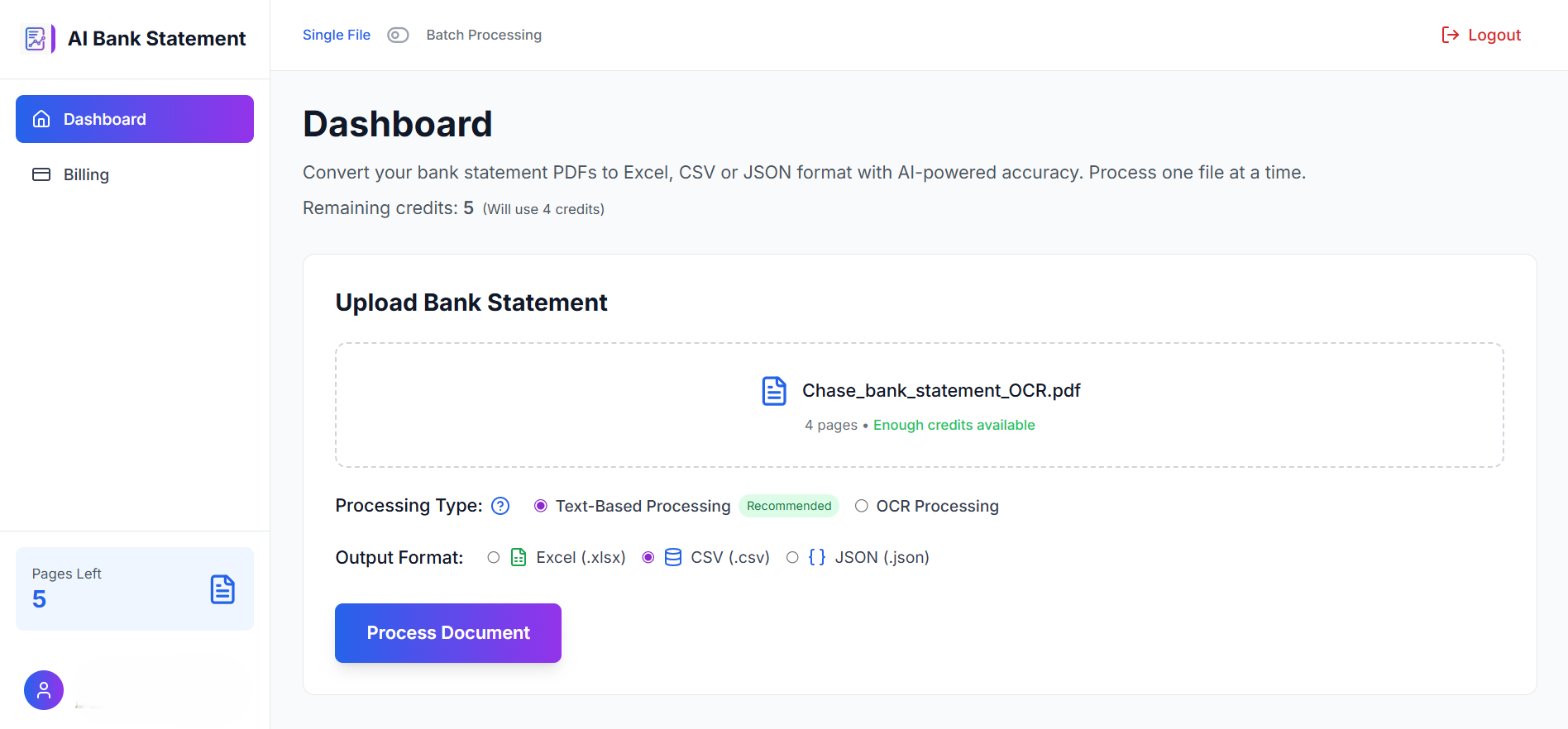
Upload the PDF at AIBankStatement. No login to your bank required.
-
Download your Excel or CSV file. Open it directly in Excel or Google Sheets, clean rows, correct columns, ready to use.
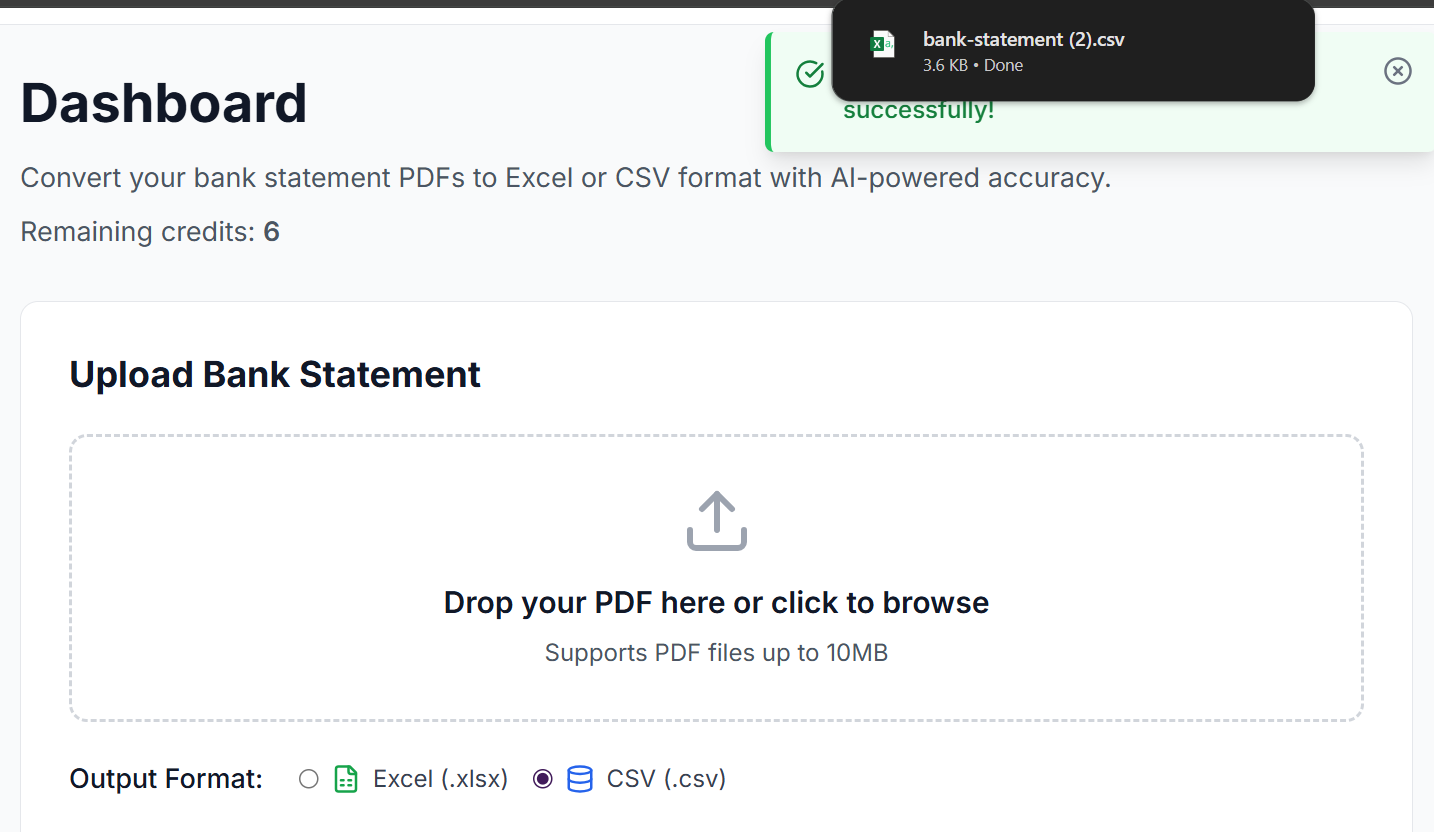
That's it. What used to take two hours of manual fixing takes under 60 seconds.
Comparison: Ways to Get Bank Statement Data into Excel
| Method | Scrambled Output? | Handles Scanned PDFs? | Time Required | Accuracy |
|---|---|---|---|---|
| Open PDF directly in Excel | ❌ Almost always | ❌ No | Long cleanup | Poor |
| Copy-paste from PDF reader | ❌ Usually | ❌ No | Long cleanup | Poor |
| Excel "Get Data from PDF" | ⚠️ Often | ❌ No | Medium cleanup | Inconsistent |
| Generic OCR tools | ⚠️ Sometimes | ⚠️ Basic | Medium cleanup | Mixed |
| AIBankStatement | ✅ No | ✅ Yes | Under 60 seconds | High |
Quick Tips to Get the Best Results Every Time
Use digitally-generated PDFs where possible. If your bank offers eStatements downloaded directly from their portal, use those, they produce cleaner results than scanned copies because they contain real machine-readable text rather than images.
Don't print and re-scan. It sounds obvious, but it's a common mistake. Printing a digital PDF and scanning it back converts clean text data into a blurry image, unnecessarily degrading quality.
Upload one month at a time. If you need multiple months of data, AIBankStatement provides option for Batch processing and then combine the resulting CSV or Excel files. This gives the AI clean page boundaries to work with.
Check the balance column after conversion. For critical financial work, spot-check a few running balance figures against the original PDF. A well-structured AI converter will be accurate, but verifying takes 30 seconds and gives you confidence in the data.
The Bottom Line
Your bank statement PDF looks scrambled in Excel because PDF and Excel are fundamentally incompatible formats, and no amount of manual coaxing will fix that at the root level. Copy-pasting, drag-and-drop importing, and Excel's native PDF tools all fail for the same structural reason.
The real fix is a tool that actually understands bank statement data, not just text extraction, but the domain-specific knowledge of how financial transactions are structured across a page.
AIBankStatement converts your PDF bank statement into a clean, structured Excel or CSV file in under a minute. No scrambled columns. No floating dates. No hours of cleanup.
🔗 Stop Fighting Excel. Get Clean Data Instead.
Upload your bank statement PDF and download a perfectly structured Excel file, ready to use, no cleanup required. Works with digitally-generated and scanned statements from any bank.
→ Try It Free at aibankstatement.com
FAQs
Q1: Why does my bank statement PDF look fine when I open it normally but break when I import it into Excel?
A1: Because a PDF is a visual layout document, not a data file. It stores the position of every character on a page rather than organising data into rows and columns. When Excel tries to interpret those positions as a table, it guesses wrong, splitting descriptions across multiple cells, merging amounts with dates, and placing values in incorrect columns.
Q2: Does Excel's built-in "Get Data from PDF" feature work for bank statements?
A2: Rarely well enough to be useful. Microsoft's PDF import feature works reasonably on simple, single-page tables but struggles significantly with bank statements, which have multi-page layouts, repeated headers, running balance columns, and footer text that all interfere with Excel's row and column detection. The output usually requires substantial manual cleanup.
Q3: My bank statement is a scanned document, not a digital PDF. Can it still be converted accurately?
A3: Yes, though digital PDFs always produce cleaner results. aibankstatement.com applies OCR that's been fine-tuned for financial documents, which handles scanned statements better than generic OCR tools. It correctly distinguishes easily confused characters like 0 and O, or 1 and l, which is critical for financial accuracy.
Q4: Why does copy-pasting from a PDF into Excel produce such bad results?
A4: When you copy text from a PDF, you're copying raw positional fragments in the order they appear in the file's internal structure, which is often not reading order. You may end up pasting all the dates first, then all the balances, then all the descriptions, with no way to reassemble them into proper transaction rows.
Q5: How do I know the converted Excel file is accurate?
A5: After conversion, spot-check a few running balance figures against the original PDF. A well-built AI converter maintains balance progression correctly across all rows. For critical financial or tax work, comparing five or six rows at the start and end of the statement takes under a minute and gives you confidence in the full dataset.