You open your bank app, go to statements, and the only download option is a PDF. You tap it, it downloads, and now you're staring at a beautifully formatted document that you absolutely cannot do anything useful with. No CSV button. No Excel option. No "export transactions" toggle anywhere in sight.
If you've searched "bank app only gives PDF how to get CSV", you're dealing with one of the most common friction points in personal finance and small business bookkeeping. The good news: the PDF your bank gave you is not a dead end, it's actually the starting point. This guide explains why your bank app only offers PDF, what your options are, and how to get a clean CSV in 30 seconds without touching your bank app again.
Why Does Your Bank App Only Give You a PDF?
It feels like a basic feature. It isn't, at least not for a large portion of banks and financial apps. Here's why:
App-first banks prioritise viewing, not exporting. Most retail banking apps are designed around one goal: showing you your balance and recent transactions on screen. The assumption is that you'll manage your money inside the app itself. Exporting data for use in external tools is a secondary use case that many app teams simply haven't built yet or have deliberately deprioritised.
PDF is the lowest-friction compliance format. Regulators in most countries require banks to provide customers with accessible transaction records on request. A PDF satisfies this requirement because it's universally readable, tamper-evident, and printable. A CSV does not satisfy the same regulatory standard in the same way, so banks default to PDF when they need to offer something downloadable.
CSV export requires backend infrastructure. Generating a structured CSV from live transaction data requires a dedicated data pipeline, the bank's app needs to query transaction records, format them correctly, handle currency and date formatting, and stream the output as a file. PDF generation is often handled by a simpler document rendering system that's already in place. Many banks, especially regional ones and newer neobanks, haven't built the CSV pipeline yet.
Legacy core banking systems. Older banks run on core infrastructure that's decades old. Their transaction data sits in formats that require custom work to export as CSV. Building that export layer is expensive and low-priority compared to other platform work.
The result: you get a PDF. Every time. Regardless of what you actually need.
What You've Probably Already Tried
If you're reading this, you've likely already attempted at least one of these:
Searching for a hidden CSV option in the app. It's not there. If it were, you wouldn't be here.
Trying to copy-paste from the PDF. If your PDF is digitally generated, you might manage to select some text, but pasting it into a spreadsheet produces scrambled, structurally broken output with no row logic. If your bank app generates scanned-style PDFs, nothing copies at all.
Opening the PDF in Excel. Excel's built-in PDF import feature misreads bank statement layouts almost every time, merged columns, floating values, repeated headers, and page numbers all end up inside the data. The output needs hours of manual cleanup.
Third-party bank aggregators. Tools like Plaid or similar open banking connectors can pull your transaction data directly, but they require you to hand over your banking login credentials to a third party. For many people, that's a non-starter from a security standpoint, and many smaller banks aren't even supported.
None of these work reliably. The reason is that they're all trying to work around the PDF rather than actually solving the problem.
The Actual Solution: Convert the PDF to CSV
The PDF your bank app gave you contains all the transaction data you need. The problem isn't the data, it's the format. The solution is converting that PDF into a structured CSV using a tool that actually understands bank statement layouts.
AIBankStatement is built specifically for this. Here's what makes it work where everything else fails:
AI Extraction, Not Just Text Copying
The platform doesn't try to copy-paste your PDF the way you would. Its AI reads the full layout of your bank statement, understanding that the first column is dates, the second is descriptions, the third and fourth are debits and credits, and the fifth is a running balance, and reconstructs that structure as a proper spreadsheet. One transaction per row. Every value in the right column. No manual cleanup.
OCR for Scanned or Image-Based PDFs
Many bank apps, particularly those from regional banks, cooperative banks, and older institutions, generate PDFs that are actually images rather than text documents. Your cursor won't even change to a text cursor when you try to click on them.
AIBankStatement's OCR processing mode handles this exactly. OCR (Optical Character Recognition) reads the image of your statement the way a human would, recognising each character, but then the AI goes further and understands the table structure, assembles the rows correctly, and outputs a perfectly formatted file. You can select OCR mode manually per file when uploading, or let the platform detect it automatically.
Text-Based PDF Mode for Digital Statements
If your bank app generates digital PDFs (where text is selectable, even if copying is broken), the platform's text extraction mode reads the embedded text directly, bypassing copy-protection and the column-ordering chaos that breaks manual copying, and delivers the same clean output.
95%+ Accuracy, 30-Second Processing
The AI achieves 95%+ accuracy on bank statement extraction, consistently higher than manual data entry. And it processes most statements in under 30 seconds, regardless of length. A 12-month statement that would take hours to manually transcribe is done before your next coffee.
Output in CSV, Excel, or JSON
Once converted, you can download your data as a CSV (works in Google Sheets, Excel, and imports cleanly into accounting software), Excel (.xlsx) (ready to open with full formatting), or JSON (for developers building financial tools or pipelines). All three formats are available on paid plans.
Bank-Grade Security and Auto-Deletion
Your bank statement contains sensitive data. AIBankStatement processes files on enterprise-grade secure servers and automatically deletes all uploaded files immediately after conversion. No human accesses your data. No file is stored after download. You upload, you convert, you download, and then it's gone from the server.
Step-by-Step: From PDF to CSV in Under a Minute
Here's the exact process, start to finish:
-
Open your bank app and navigate to Statements, eStatements, or Documents. Download the PDF statement for the period you need. Save it to your phone or computer.
-
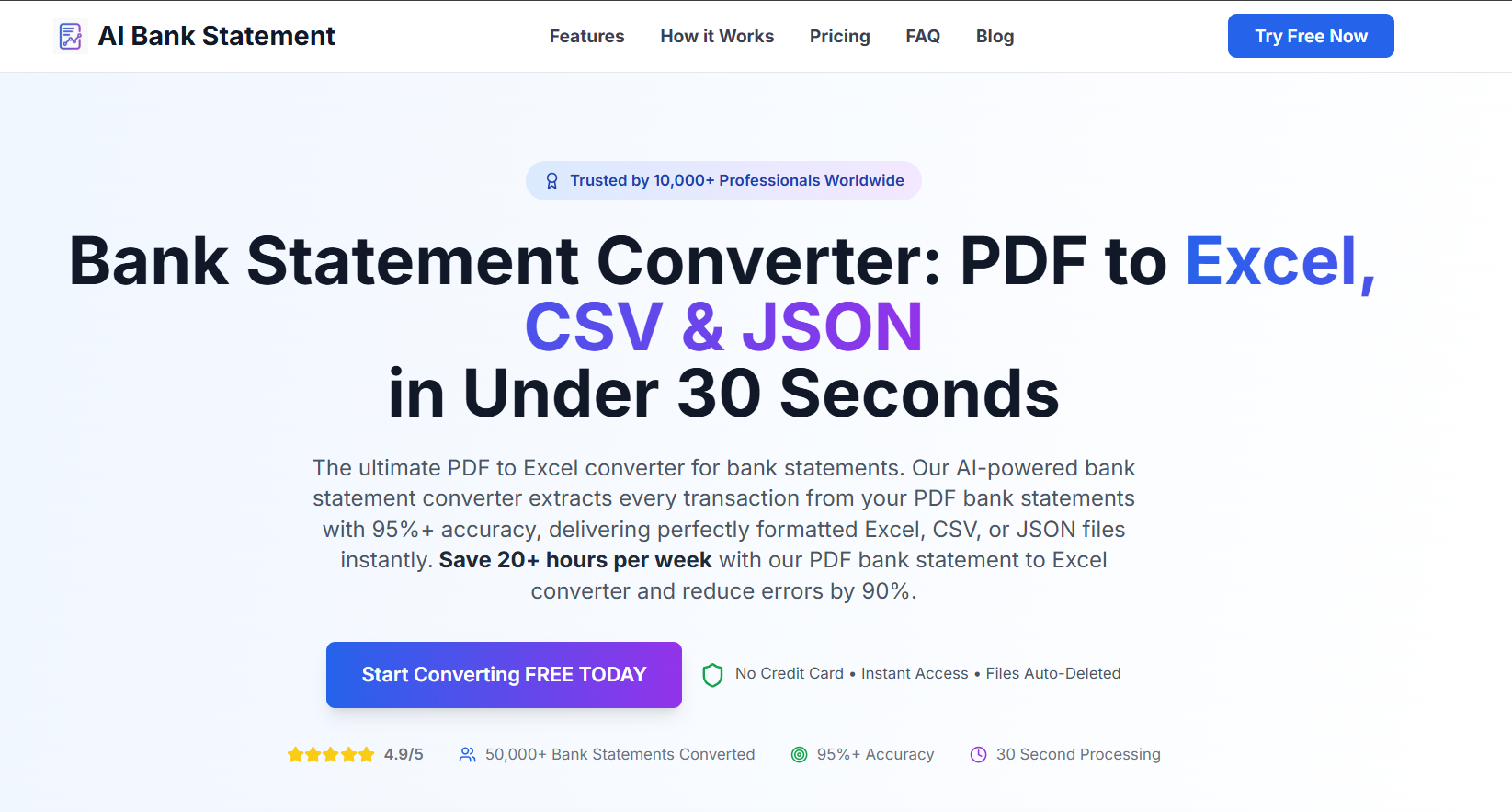
Go to AIBankStatement - Sign up, choose a paid plan, and upload your PDF.
-
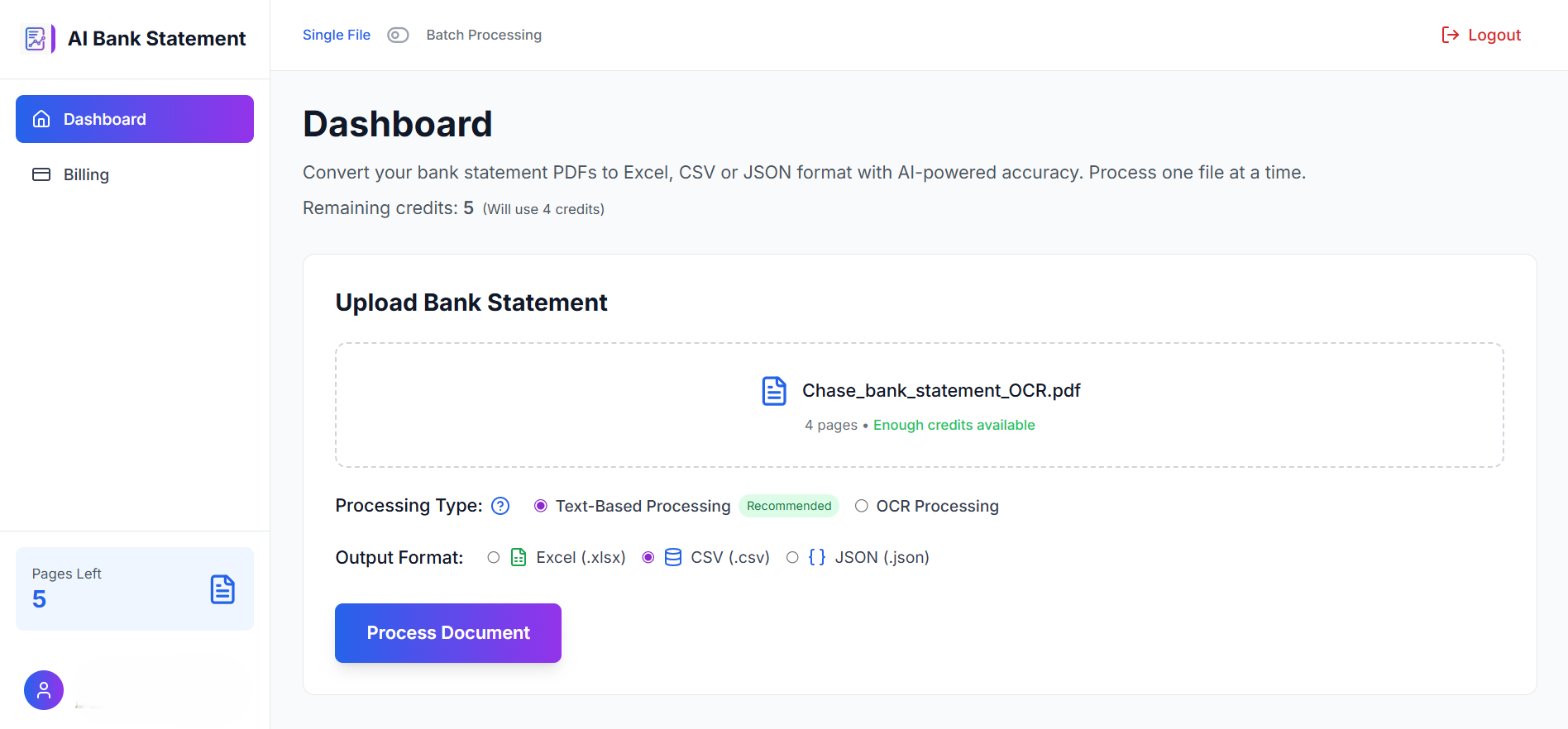
Upload your PDF. Drag and drop the file or click to browse. If you have multiple months to convert, use the batch processing feature, you can upload up to 20+ PDFs simultaneously and process them all at once, downloading the results as a single ZIP archive.
-
Select your processing mode - Text-Based for digital PDFs, OCR for scanned or image-based ones. If you're unsure, the AI detects it automatically.
-
Choose your output format - CSV, Excel, or JSON.
-
Download your file. Clean, structured, one transaction per row, correct columns. Ready for Google Sheets, Excel, QuickBooks, Xero, Tally, YNAB, or wherever you need it.
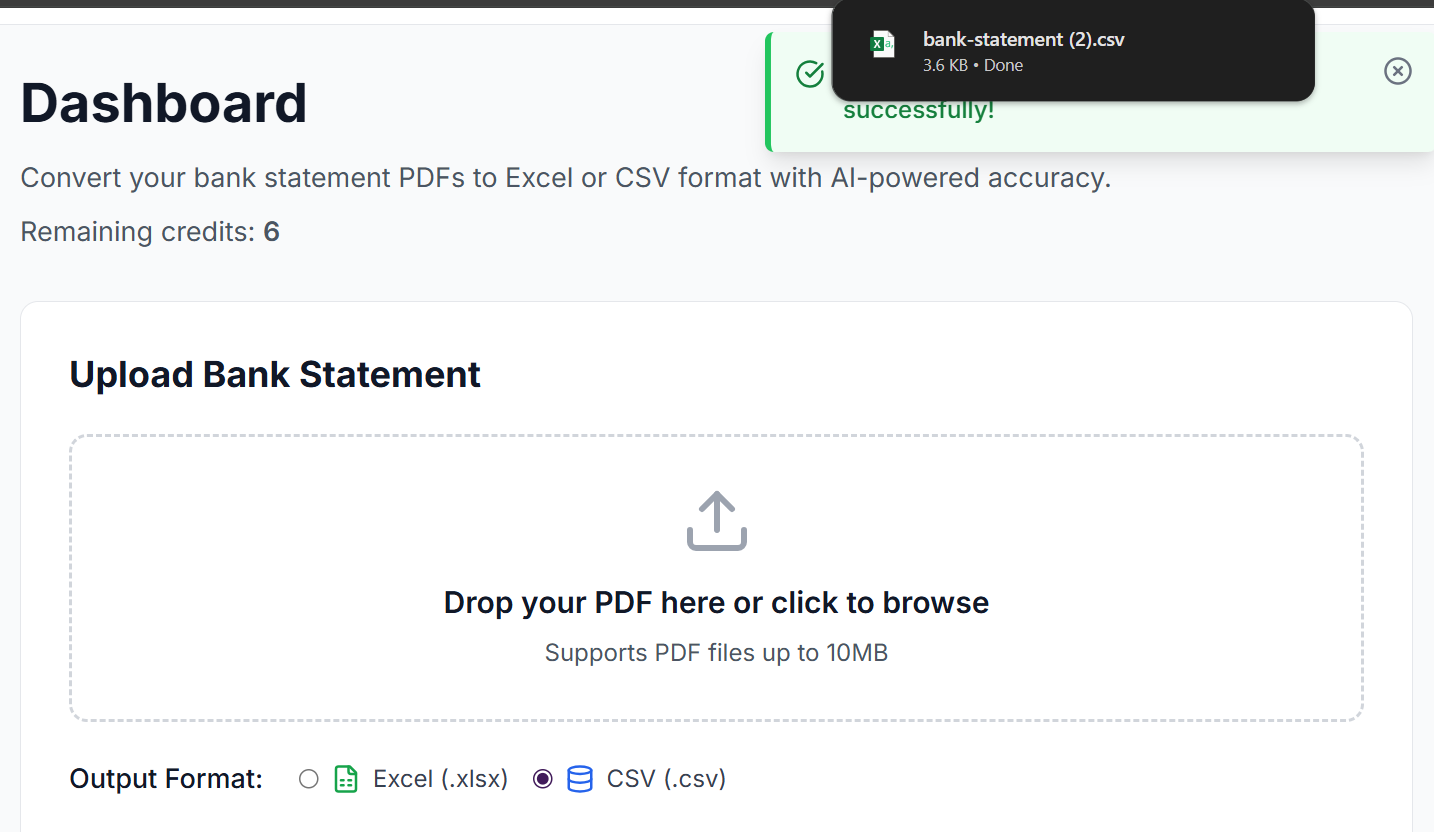
The whole process takes under 60 seconds for a standard monthly statement.
Who This Solves the Problem For
Freelancers tracking expenses who need their bank transactions in a spreadsheet for quarterly taxes but whose bank app only exports PDF.
Small business owners reconciling accounts in QuickBooks or Xero who can't import a PDF directly into their accounting software.
People applying for loans or visas who need to submit transaction data in a structured format for verification purposes.
Accountants and bookkeepers handling client accounts at banks that don't support CSV export, the batch processing feature is particularly useful here, converting a full year of monthly statements in one go.
Anyone who's been manually typing out transactions from a PDF into a spreadsheet. This replaces hours of work with 30 seconds.
Comparison: Ways to Get CSV from a Bank App PDF
| Method | Works Reliably? | Security Risk | Time Required | Output Quality |
|---|---|---|---|---|
| Copy-paste from PDF | ❌ Rarely | None | Hours of cleanup | Poor |
| Excel PDF import | ❌ Rarely | None | Hours of cleanup | Poor |
| Bank aggregator (Plaid etc.) | ⚠️ Depends on bank | ⚠️ Shares login | Fast | Good |
| Generic OCR tools | ⚠️ Sometimes | None | Medium cleanup | Mixed |
| AIBankStatement | ✅ Yes | ✅ None, auto-deleted | ✅ 30 seconds | ✅ Clean |
The Bottom Line
Your bank app gives you a PDF because that's what's easiest for the bank, not because it's what's useful for you. The PDF contains all your transaction data. The only thing missing is structure.
AIBankStatement adds that structure in 30 seconds, using AI extraction for digital PDFs and OCR mode for scanned ones, and hands you back a clean CSV or Excel file that works immediately in any tool you use.
No login to your bank. No credential sharing. No manual copying. No hours of reformatting.
Your bank app gave you a PDF. Turn it into a CSV, Excel, json right now.
🔗 Got a PDF? Get a CSV in 30 Seconds.
Upload your bank statement PDF from any bank, any country, any format, and download a clean, structured CSV or Excel file instantly. Paid plans include monthly page credits, and files are auto-deleted after processing.
Frequently Asked Questions
Q1: My bank app generates a PDF, will AIBankStatement work with it even if it's from a small regional bank?
A1: Yes. AIBankStatement's AI is designed to handle bank statement layouts from any financial institution worldwide, major national banks, regional banks, credit unions, NBFCs, neobanks, and cooperative banks. It doesn't rely on bank-specific templates. Instead it reads the structure of whatever PDF you upload and intelligently identifies dates, descriptions, debits, credits, and balances regardless of how the layout is arranged. If your bank produces a PDF statement, the converter can handle it.
Q2: Can I convert multiple months of statements at once instead of uploading one by one?
A2: Yes, this is one of AIBankStatement's most useful features for this exact scenario. The batch processing feature lets you upload 12+ PDF statements simultaneously, configure each one individually (OCR or text-based mode, output format), and process them all in parallel. Results download as a single ZIP archive with all your converted files named and organised. What would otherwise take an entire afternoon takes a few minutes. This is especially useful for year-end tax preparation or when an accountant needs a full year's worth of data.
Q3: The PDF from my bank app is password-protected. Can I still convert it?
A3: You'll need to unlock the PDF first. Bank-generated password-protected PDFs typically use your date of birth, last four digits of your account number, PAN, or registered mobile number as the password, check the email that accompanied the statement for a clue. Open it in Adobe Reader or your browser using that password, then save or export it as a new PDF without the password (using File → Print → Save as PDF). Upload the unlocked version to AIBankStatement and the conversion works normally.
Q4: What's the difference between CSV and Excel output, which should I choose?
A4: CSV is a plain text file with values separated by commas, it opens in Excel, Google Sheets, and imports into virtually all accounting software (QuickBooks, Xero, Tally, Wave, FreshBooks) without any issues. Excel (.xlsx) is a formatted spreadsheet file with proper column widths and cell formatting already applied, better if you're going to work with the data directly in Excel rather than import it into another tool. For sending to an accountant or importing into software, CSV is usually the cleaner choice. For personal analysis in Excel or Google Sheets, either works perfectly.
Q5: How do I know the CSV output will be accurate enough to use for accounting or tax purposes?
A5: AIBankStatement achieves 95%+ accuracy on bank statement extraction, which consistently outperforms manual data entry, where error rates typically run between 1–5% even for careful typists. For accounting and tax use, the recommended workflow is to download the CSV, open it alongside your original PDF, and spot-check the opening balance, closing balance, and a handful of transactions in the middle. This takes about two minutes and gives you full confidence in the dataset. The platform also processes running balances as a built-in accuracy check, if the balance column follows correctly across all rows, the extraction is reliable.