It was a Tuesday night. The kind of Tuesday that somehow feels like it has three Mondays baked into it.
I had a client review scheduled for Wednesday morning - a freelance bookkeeper presenting three months of transaction data for a small retail business. The bank statements were right there, downloaded as PDFs from three different accounts. All I had to do was get the numbers into Excel.
Simple, right?
Three hours later, my coffee was cold, my eyes were burning, and I was on row 214 of a spreadsheet - manually typing dates, descriptions, and amounts one by one, squinting at a Chase PDF zoomed to 150% just to read the transaction narrations. I had already made four errors I'd caught, and I was quietly terrified about the ones I hadn't.
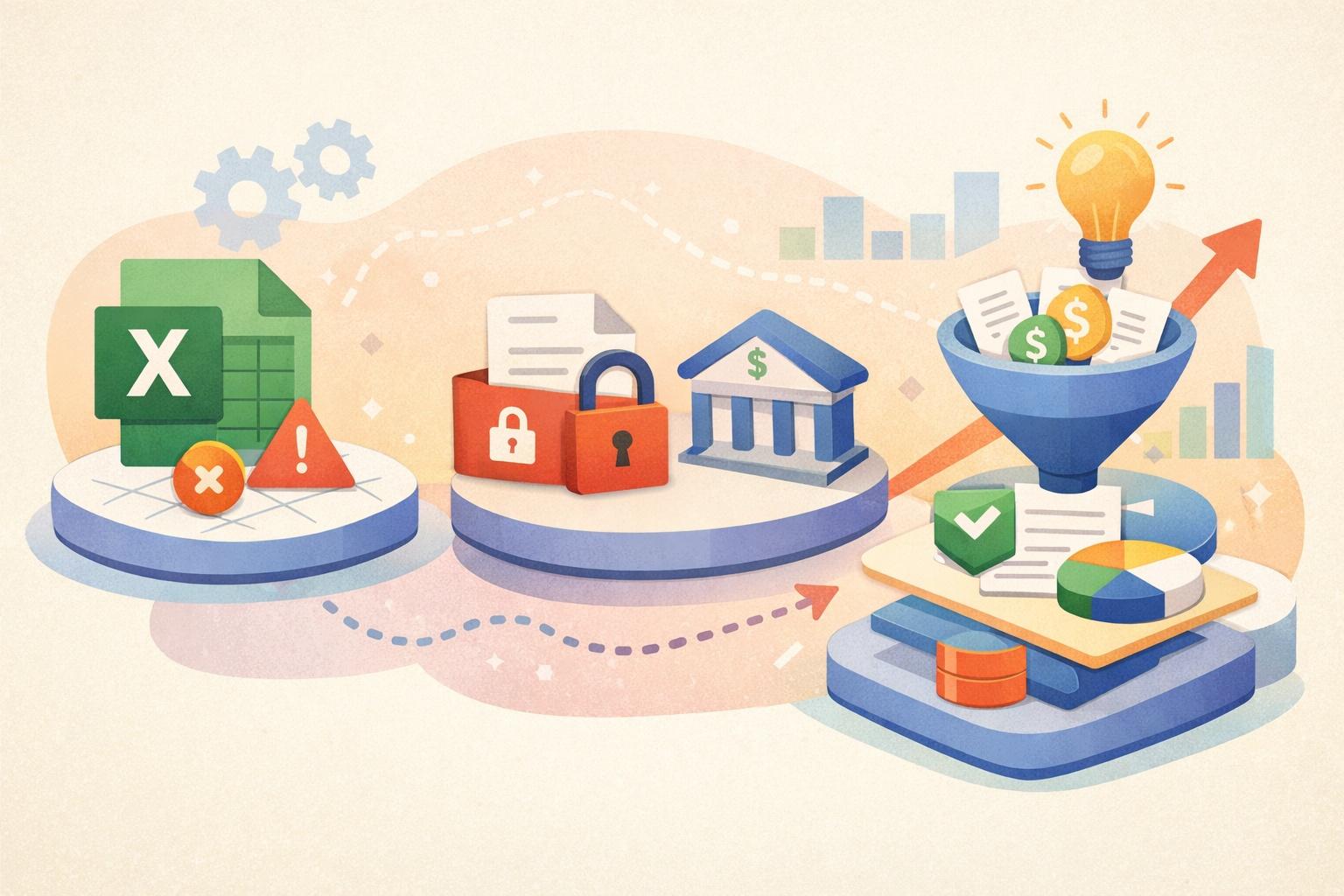
If you've ever tried to stop manually copying bank statement to Excel, you already know exactly how this night was going.
Why We Still Do It the Hard Way
Here's the thing nobody says out loud: most of us who work with financial data have accepted this pain as "just the job." We treat manual data entry as a necessary evil - something you grind through before the real analysis work begins.
But let's be honest about what's actually happening when you manually copy a bank statement into Excel:
You're doing something a machine should be doing. Every digit you type, every date you format, every description you copy-paste - it's repetitive, error-prone, low-value work. You're a trained financial professional spending your most productive hours doing what amounts to transcription.
And the costs add up fast. A standard bank statement with 100–150 transactions can eat 2–4 hours of focused effort. At a modest billing rate of $50/hour, that's $100–$200 of your time on a single statement - just on data entry. Do that for 10 clients a month and you've lost $1,000–$2,000 in recoverable time.
The Night I Finally Stopped
Back to my Tuesday disaster. Around the 2.5-hour mark, frustrated and running on fumes, I started Googling. I wasn't sure what I was looking for - some smarter way to convert a PDF bank statement to Excel without typing everything out by hand.
That's when I found AI Bank Statement's PDF to Excel converter.
I'll be honest - I was skeptical. I'd tried PDF converters before. They'd give me garbled text, merged columns, misaligned rows, garbage formatting. Useless.
But I was desperate, so I uploaded one of the PDFs. Thirty seconds later, a perfectly formatted Excel file downloaded to my desktop.
I opened it. Every transaction was there. Dates in the right format. Amounts in their own column. Descriptions clean and readable. No merged cells. No junk rows. No manual cleanup needed.
I sat back in my chair and genuinely laughed out loud.
What AI Bank Statement Actually Does (The Features That Matter)
After that first night, I went deeper into the platform. Here's what makes it genuinely different from anything else I'd tried:
🔍 OCR-Powered Extraction - The Core of Everything
The feature most relevant to the "stop manually copying bank statement to Excel" problem is the platform's OCR (Optical Character Recognition) technology. This is what separates AI Bank Statement from basic PDF converters.
Standard converters try to extract text from PDFs using the underlying text layer - which works fine for simple documents, but bank statement PDFs are notoriously complex. Scanned statements, image-based PDFs, weird layouts from older banks - they break ordinary converters immediately.
AI Bank Statement's OCR engine reads the statement visually, the way a human eye would, and then intelligently maps what it sees into structured columns. Dates go in date columns. Debits and credits are separated. Balances are tracked. It handles complex layouts, multi-column statements, foreign currencies, and unusual formats - automatically.
The result is 95%+ accuracy across 3,000+ supported banks globally.
⚡ 30-Second Processing
This one hit different after spending three hours doing the same job manually. Upload your PDF, and your converted Excel or CSV file is ready in under 30 seconds. Not 30 minutes. Thirty seconds.
That's not a typo.
📦 Batch Processing for Multiple Statements
Here's where the real time savings compound. If you're an accountant, bookkeeper, or CPA working with multiple clients - or processing multiple months at once - the bulk processing feature is transformational.
You can upload 20+ statements simultaneously. Each file can be individually configured (OCR vs. text-based processing, output format choice). Everything processes in parallel. When it's done, you download a single organized ZIP archive with all your converted files, automatically named and sorted.
What previously took an entire workday now takes minutes during a coffee break. I'm not being hyperbolic - this is real.
🔒 Bank-Grade Security & Auto-Delete
A legitimate concern when uploading sensitive financial documents anywhere: what happens to my data?
AI Bank Statement uses military-grade encryption and - critically - automatically and permanently deletes your files immediately after processing. Nothing is stored, accessed, or retained. Your clients' financial data never sits on someone's server.
📊 Multiple Output Formats: Excel, CSV, and JSON
Whether you're importing into QuickBooks, Xero, Google Sheets, or running data through a custom financial model - the output is clean and import-ready. No reformatting. No column cleanup. Just structured, usable data the moment you download it.
The Math That Made Me Feel Silly for Waiting
Let's run the numbers on why manually copying bank statements to Excel is actually an expensive habit:
| Method | Time per Statement | Cost (at $50/hr) | Monthly (10 statements) |
|---|---|---|---|
| Manual Excel entry | 3–4 hours | $150–$200 | $1,500–$2,000 |
| AI Bank Statement (Starter Plan) | 30 seconds | $0.03/page | ~$12/month |
At the Starter Plan pricing of $12/month for 400 pages, you're covering roughly 80 standard 5-page statements for the price of a takeout lunch. The ROI on the first week alone is absurd.
Who This Tool Is Built For
In my experience, if any of these describe you, this tool should already be in your workflow:
- Freelance bookkeepers managing multiple client accounts
- CPAs and tax preparers during crunch season
- Loan officers and underwriters verifying applicant financial history
- Small business owners tracking cash flow without a full accounting team
- Financial auditors processing documentation at scale
- Visa and immigration applicants preparing proof-of-funds documentation
What Changed After That Tuesday Night
The client review went perfectly, by the way. I re-did the entire dataset with AI Bank Statement - three months, three accounts - in about four minutes. Formatted better than anything I'd have produced manually after three exhausted hours.
Since then, I've completely stopped manually copying bank statements to Excel. It's not even a consideration anymore. The tool handles the transcription so I can focus on what I was actually trained to do: analysis, strategy, and advice.
Paid plans include monthly page credits. If you have even one bank statement sitting on your desktop right now, upload it and see the structured output for yourself.
Never copy manually again - convert at aibankstatement.com →
Frequently Asked Questions
Q1: Can AI Bank Statement handle scanned bank statements, not just digital PDFs?
Yes - this is precisely what the OCR feature is built for. While text-based PDFs process with the standard extraction method, scanned or image-based statements are handled by the OCR engine, which reads the document visually and extracts data with the same high accuracy. You can select the processing type (OCR or text-based) for each file individually when using the batch upload feature.
Q2: How accurate is the conversion, really? I can't afford errors in financial data.
The platform achieves 95%+ accuracy across supported banks - which, importantly, is higher than the average accuracy rate of manual data entry (studies consistently put human transcription error rates at 1–5%, compounding across hundreds of rows). That said, AI Bank Statement recommends reviewing extracted data for critical financial decisions, which is standard best practice regardless of how the data was captured.
Q3: I work with statements from international banks and foreign currencies. Does it work?
Yes. AI Bank Statement supports 3,000+ banks globally, processes statements in multiple languages, and handles foreign currencies automatically. The AI adapts to different layouts and formats without requiring manual configuration - which makes it particularly useful if your client base spans multiple countries.
Q4: What happens to my clients' sensitive financial data after I upload it?
Files are permanently and automatically deleted immediately after processing is complete. The platform uses bank-grade encryption during processing and never stores, accesses, or retains your data. There is no human reviewing your statements - the entire process is automated and private.
Q5: Is there a way to process multiple client statements at once, or do I have to upload them one at a time?
The batch processing feature lets you upload 20+ PDF statements simultaneously. You configure each file individually (processing type, output format), they all run in parallel, and you download a single ZIP archive with all converted files when complete. For accountants and bookkeepers handling multiple clients, this is the feature that delivers the most dramatic time savings.
Ready to stop manually copying bank statements to Excel forever? Choose a paid plan at aibankstatement.com.