You open your bank statement PDF, try to select some text, and nothing happens. Or you manage to select it, paste it somewhere, and what comes out is garbled nonsense, numbers in the wrong order, descriptions split apart, or complete gibberish characters that look nothing like what's on screen.
If you've searched "can't copy text from bank statement PDF", you've hit one of the most common, and most misunderstood problems in everyday financial life. It's not a bug on your device. It's not a problem with your PDF reader. It's something built into the document itself. This guide explains exactly why it happens, what type of PDF you're dealing with, and why the solution isn't better copying; it's skipping the copying altogether.
Two Types of Bank Statement PDFs And Why It Matters
Not all PDFs are created equal. When you try to copy text from a bank statement and fail, it almost always comes down to which of these two types of PDF your bank sent you.
Type 1: The Text-Based PDF (Digital PDF)
A text-based PDF is generated directly by your bank's software. The characters you see on screen are real, machine-readable text stored inside the file, you just can't always interact with them the way you'd expect. This type of PDF should allow you to select and copy text, but there are two reasons it often still doesn't work well:
Copy protection is enabled. Banks sometimes apply security restrictions to their PDFs that prevent text selection, copying, or printing. This is a deliberate choice, the bank has locked the document to protect its formatting and prevent unauthorised modification. Even though the text is technically there, your PDF reader is blocked from letting you access it.
Column extraction breaks the structure. Even when copying works, the result is almost always unusable. A PDF doesn't store text in rows, it stores it as individual characters with position coordinates. When you copy a line that looks like 03 Mar Amazon 1,299.00 11,151.00, you may actually be copying four completely separate text fragments that happen to appear near each other visually. Paste them into Excel and they land in random cells with no logical order.
Type 2: The Scanned PDF (Image-Based PDF)
This is where the "can't copy anything at all" problem originates. A scanned PDF is exactly what it sounds like: a physical bank statement (or an older digital statement) that was photographed or scanned and saved as a PDF.
Here's the critical thing: a scanned PDF contains no text whatsoever. What you're looking at when you read your bank statement is a flat image, like a photograph of a piece of paper. There are no characters, no letters, no numbers in the file. There's only pixels. You can no more copy text from it than you can copy text out of a JPEG photo.
This is why your cursor turns into a crosshair instead of a text cursor when you try to select. There's nothing to select. The text you see is just the appearance of text within an image.
Why Banks Send Scanned PDFs
If scanned PDFs are so limited, why do banks still use them? Several reasons:
Legacy records. Older bank statements from before the digital era were physically printed and filed. When banks digitised their archives, they scanned these paper records. If you've requested older statements, anything more than a few years back, there's a high chance they'll come as scanned images.
Branch-generated statements. If you visited a branch and asked for a printed statement, some banks scan that printed copy and email it to you rather than generating a fresh digital version.
Regulatory printing requirements. Some bank processes require a physical signature or stamp on statements before they're considered official. These get scanned after signing.
Third-party statement providers. Some NBFCs, cooperative banks, and smaller financial institutions outsource statement generation to third parties who produce scanned outputs by default.
"I spent 20 minutes trying to copy my transactions from a bank statement PDF. Cursor wouldn't even change when I clicked on the text. Turns out the whole thing was just a scanned image. I had no idea that was even possible."
This is one of the most common realisations users have, and once you understand it, the solution becomes obvious.
Why Copying Isn't the Right Solution Anyway
Even if you could perfectly copy every piece of text from your bank statement PDF, you'd still end up with a mess. Here's why:
Reading order vs. visual order. PDFs store text in the order it was created internally, not the order your eyes read it. A five-column layout; Date | Description | Debit | Credit | Amount might be stored internally as all the dates first, then all the descriptions, then all the amounts. Copying produces a vertical column dump, not rows.
No row boundaries. When you copy from a PDF, there's no signal telling Excel where one transaction ends and the next begins. Everything lands in one giant block that you'd have to manually re-split.
Numbers as text. Even when amounts copy correctly, they often paste as text strings rather than true numbers. Excel can't add, subtract, or calculate with them until you manually convert each one.
Manual copying at scale is unworkable. Even if everything pasted perfectly, copying 200 transactions one by one is hours of work, and that's before fixing formatting errors. For a three-month statement, you're looking at a full day of tedious, error-prone data entry.
The solution to "can't copy text from bank statement PDF" was never better copying. It's eliminating the need to copy entirely.
The Real Fix: OCR-Powered AI Conversion
The technology that solves both types of PDF text-based and scanned, is OCR combined with AI. OCR stands for Optical Character Recognition, and it's what allows software to actually read the image of text on a scanned page, rather than being blocked by the fact that there's no machine-readable text there.
But standard OCR alone isn't enough for bank statements. Generic OCR tools read text character by character without understanding the structure. They'll extract the characters, but they won't know that 1,299.00 in the third column belongs to the same row as 03 Mar in the first column and Amazon in the second.
This is exactly what AIBankStatement is built to solve.
How AIBankStatement Handles Both PDF Types
For scanned PDFs - OCR mode: The platform applies high-accuracy OCR that's been specifically trained on financial document layouts. It doesn't just read characters, it understands the table structure of a bank statement, correctly assembles each row, and assigns every value (date, description, debit, credit, balance) to the right column. You can even select OCR mode manually per file when uploading, giving you precise control over how each statement is processed.
For text-based PDFs - Text extraction mode: For digitally generated PDFs, the AI reads the embedded text directly, bypassing copy protection and the column-ordering chaos that breaks manual copying, and outputs a perfectly structured spreadsheet.
In both cases, the result is the same: a clean Excel (.xlsx), CSV, or JSON file with one transaction per row, proper column headers, and numbers that are actual numbers, ready to import into QuickBooks, Xero, Tally, Google Sheets, or any accounting software without a single minute of manual cleanup.
The processing takes under 30 seconds for most statements. Files are automatically deleted after conversion, your financial data never sits on a server.
How to Convert Your Statement Right Now
-
Download your bank statement PDF from your bank's net banking portal, look under Statements, eStatements, or Documents.
-
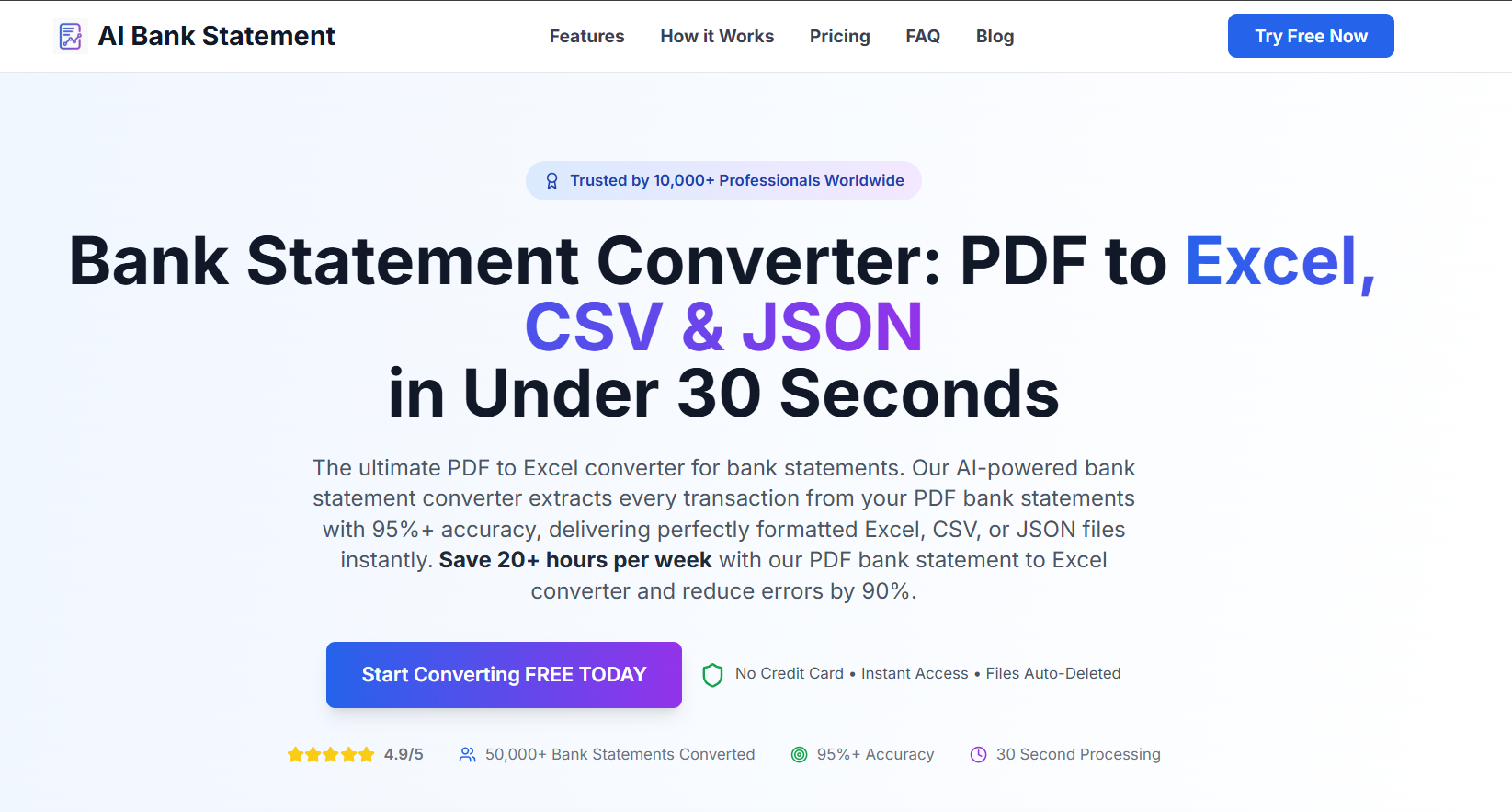
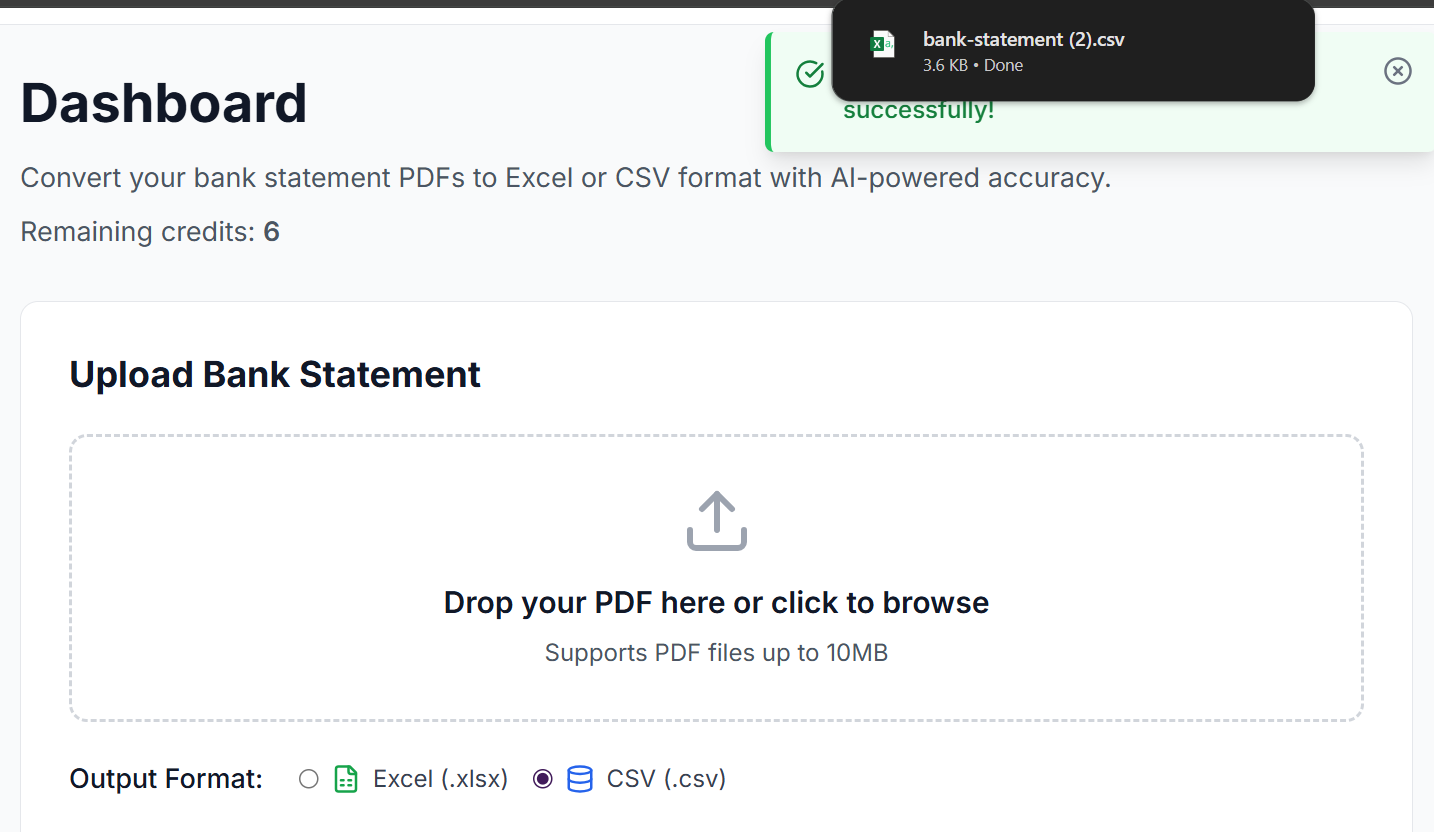
Go to AIBankStatement - Sign up, choose a paid plan, and upload your PDF.
-
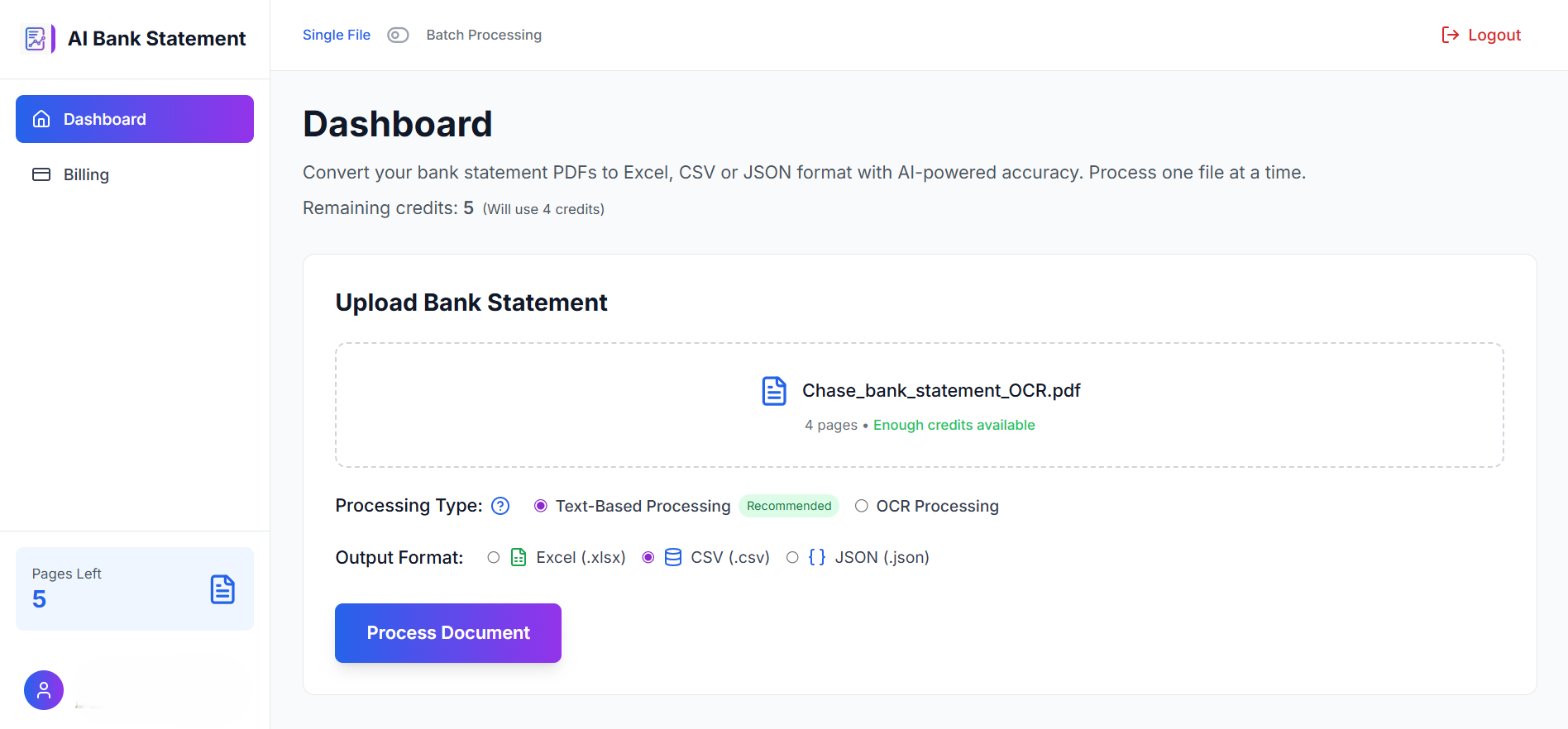
Upload your PDF. If you know it's a scanned document, select OCR mode. If you're unsure, the AI detects it automatically.
-
Wait 15–30 seconds while the AI reads and structures every transaction.
-
Download your Excel or CSV file - clean, structured, ready to use or send to your accountant.
No copying. No pasting. No reformatting. No data entry.
Text-Based vs. Scanned PDF: How to Tell Which One You Have
Not sure which type of PDF your bank sent you? Here's the fastest way to find out:
| Test | Text-Based PDF | Scanned PDF |
|---|---|---|
| Hover cursor over text | Cursor changes to I-beam (text cursor) | Cursor stays as arrow or crosshair |
| Try to select text | Text highlights (even if copy is blocked) | Nothing selects |
| Zoom in very close | Text stays sharp and crisp | Text becomes pixelated or grainy |
| File size for 5 pages | Usually under 500KB | Often 1MB+ |
| Copy attempt result | Partial or scrambled text | Nothing copies at all |
If your statement is scanned, OCR is the only way to extract usable data from it. If it's text-based but copy-protected or structurally broken, AI extraction is still far faster and more accurate than any manual approach.
The Bottom Line
You can't copy transactions from your bank statement PDF for one of two reasons: the PDF is a scanned image with no actual text in it, or it's a text-based PDF with copy protection or structural formatting that makes copying produce unusable output. Either way, copying isn't the right approach.
AIBankStatement handles both cases, using OCR for scanned statements and direct AI extraction for digital ones, and delivers a clean, structured Excel or CSV file in under 30 seconds. No copying required. Works with statements from any bank, anywhere in the world, in any language.
Stop trying to copy. Start converting.
🔗 No Need to Copy - Just Convert.
Upload your bank statement PDF, scanned or digital, and download a perfectly structured Excel or CSV file in seconds. Paid plans include monthly page credits, and files are auto-deleted after processing.
→ Convert Your Bank Statement at aibankstatement.com
Frequently Asked Questions
Q1: My bank statement PDF won't let me select any text at all, what type of PDF is it?
A1: If your cursor doesn't change to a text cursor when you hover over the document, and nothing highlights when you click and drag, you almost certainly have a scanned PDF. This means the statement is an image, there is no actual text in the file. Standard PDF readers and copy-paste tools cannot extract anything from it. You need OCR technology to read it, which is exactly what aibankstatement.com's OCR processing mode is designed for. Upload the file, select OCR mode, and the AI will read and extract every transaction from the image.
Q2: I can select and copy text from my PDF, but when I paste it into Excel it's completely scrambled. Why?
A2: You have a text-based PDF, the text is there, but it's stored in positional coordinates, not in row-and-column order. When you copy, you're copying text fragments in the file's internal order, which doesn't match the visual reading order. Dates may paste separately from amounts, descriptions may split across cells, and there's no row boundary information to tell Excel where one transaction ends and the next begins. AIBankStatement's text extraction mode reads the PDF structure intelligently and reassembles it into proper rows, solving the problem entirely.
Q3: Does aibankstatement.com's OCR work on low-quality or older scanned statements?
A3: The platform's OCR is fine-tuned for financial documents and handles most quality levels well, including moderately faded ink, slightly skewed scans, and older statement formats. For best results, use the highest-quality scan available, if your statement came by email as a PDF, that version is almost always higher quality than a re-scanned printout. Statements with severe damage, handwritten annotations covering key data, or extremely low resolution may produce reduced accuracy, which is why the platform recommends reviewing the output for critical financial figures.
Q4: My bank statement PDF is password-protected and I can't even open it properly. What do I do?
A4: Bank-issued password-protected PDFs typically use your date of birth, PAN number, account number, or registered mobile number as the password, check any email from your bank that accompanied the statement for a hint. Open the PDF using that password in Adobe Reader or your browser, then save or export a new copy without the password (File → Print → Save as PDF). Upload that unlocked version to AIBankStatement. The conversion will work normally from there.
Q5: Is it safe to upload a scanned bank statement that contains my full account number and personal details?
A5: Yes. AIBankStatement processes your file on enterprise-grade secure servers and automatically deletes all uploaded files immediately after conversion is complete. Your statement data is never stored, never accessed by humans, and never used for any purpose beyond generating your output file. You're uploading a static document, not connecting your bank account, so there's no ongoing access risk. The auto-deletion policy means your sensitive financial data doesn't sit on any server after you've downloaded your converted file.