 ChatGPT
 Claude
 Perplexity
 Grok
GrokXero works best when the bank feed is connected and complete. Real client work is rarely that tidy.
A bookkeeper might receive:
- a folder of old PDF bank statements
- a client account where the bank feed started halfway through the year
- a closed bank account with no feed available
- a credit card statement that only exists as a PDF
- a scanned paper statement from an audit or cleanup job
In those cases, the question becomes simple:
How do I get this bank statement into Xero without retyping every transaction?
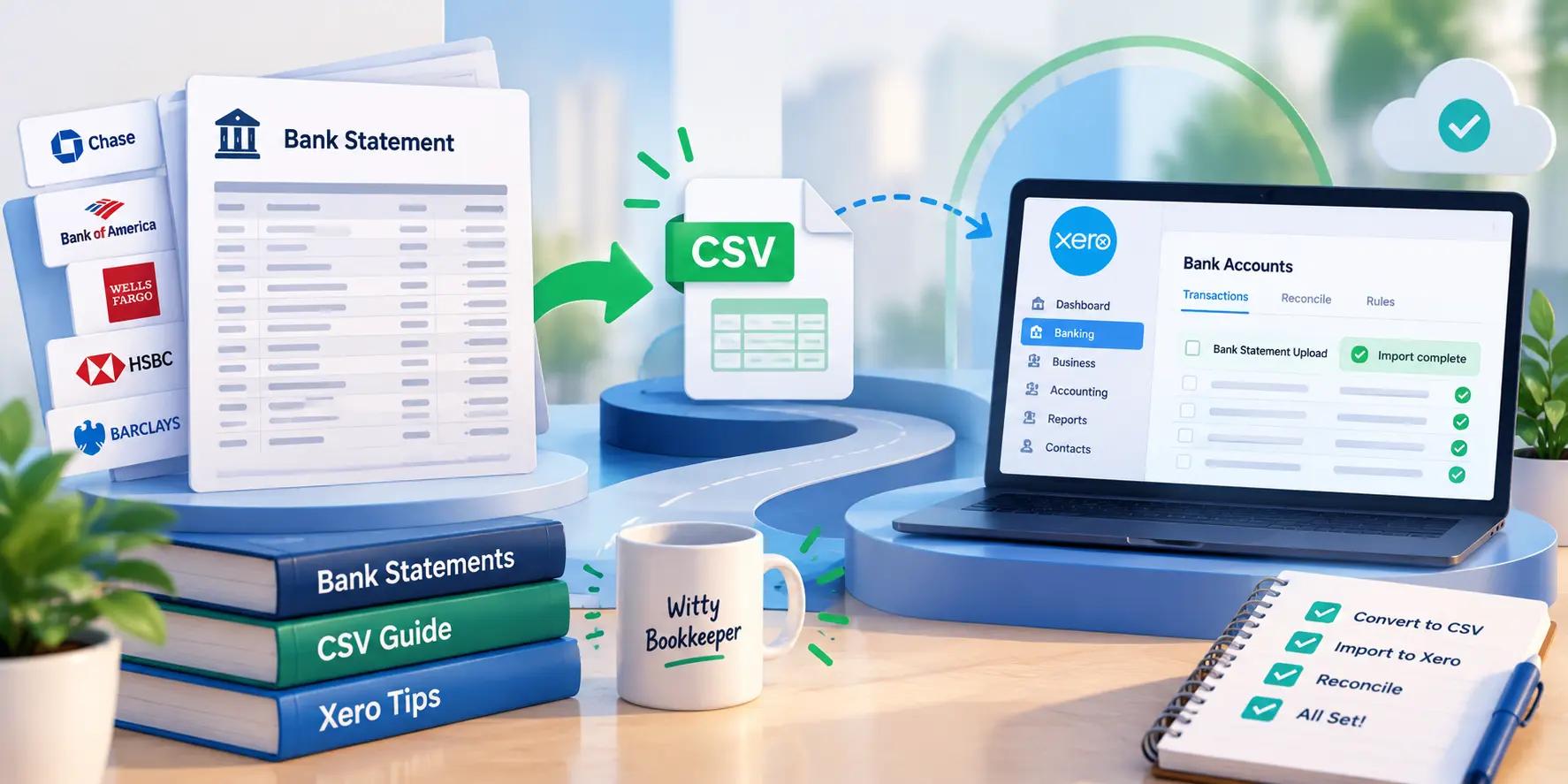
The practical route is to convert the statement PDF into a Xero-ready CSV, check the file, then import it into the right Xero bank account.
The short version
To import a PDF bank statement into Xero:
- Download or collect the official PDF bank statement.
- Convert the PDF into a Xero-compatible CSV.
- Check the date format, amount signs and transaction descriptions.
- In Xero, import the CSV into the correct bank account.
- Reconcile the imported statement lines against invoices, bills, transfers and spend-money transactions.
- Keep the original PDF statement as the source record.
AI Bank Statement can convert PDF bank statements into Xero CSV directly, including scanned PDFs through OCR mode.
Can Xero import a PDF bank statement directly?
Xero's manual bank statement import flow is built around statement-line files such as CSV. A PDF statement is useful as the source record, but it is not the same thing as an import-ready CSV.
A PDF is designed to be read by a person. Xero needs transaction rows.
That means you usually need this transformation:
Bank statement PDF → transaction rows → Xero CSV → Xero bank account
The conversion step is where most manual work usually happens. A normal PDF-to-Excel tool often produces merged cells, broken columns or page headers mixed into the transaction rows. A bank-statement converter should instead extract one transaction per row.
What Xero needs from a bank statement CSV
Xero's public help for CSV bank statement import says the Date and Amount fields are enough to create bank statement lines. In real bookkeeping work, you should include descriptions too, because reconciliation without descriptions is painful.
A practical Xero CSV should include:
| Field | Why it matters |
|---|---|
| Date | The transaction date used in Xero's bank reconciliation screen |
| Description | The merchant, payer, payee or bank narration used for matching |
| Amount | Money in and money out, usually as one signed amount column |
| Reference or cheque number | Optional, but useful if the bank provides it |
Different Xero regions and files can handle date formats differently, so always check the date mapping during import.
The date-format problem
For bookkeepers working across countries, dates are the trap.
A date such as 04/05/2026 can mean:
- April 5 in US month-first format
- 4 May in UK, Ireland, Australia and many other day-first settings
Before importing a CSV into Xero, check a few dates that cannot be guessed. For example, a date like 14/05/2026 clearly means 14 May in a day-first file; a date like 05/06/2026 is ambiguous.
If the file contains US bank statements but your Excel or Xero organisation is set to a day-first region, review the mapping carefully.
The amount-sign problem
Xero needs to know which transactions are money in and which are money out.
Many bank exports use one amount column:
| Date | Description | Amount |
|---|---|---|
| 2026-05-01 | Client payment | 1,200.00 |
| 2026-05-03 | Software subscription | -49.00 |
Some statements use separate debit and credit columns instead:
| Date | Description | Debit | Credit |
|---|---|---|---|
| 2026-05-01 | Client payment | 1,200.00 | |
| 2026-05-03 | Software subscription | 49.00 |
Both can work if they are converted correctly. The danger is swapping the signs or treating credit-card payments as income.
Before importing into Xero, check:
- sales receipts are positive / money in
- expenses are negative / money out
- transfers are not duplicated as income and expense
- credit card payments reduce the card balance, not revenue
- refunds and chargebacks are treated correctly
When to import manually instead of relying on a bank feed
Manual import is useful when:
- the bank feed was connected late
- the bank feed missed historical transactions
- the account is closed
- the client moved accounting systems
- the bank feed duplicated or skipped a period
- the client only has PDF statements
- a lender, auditor or tax preparer needs the exact statement period
Manual import should not create duplicates. If the bank feed already brought in the same dates, narrow your CSV date range or delete duplicates before reconciling.
Step-by-step: PDF bank statement to Xero CSV
1. Collect the source statements
Ask the client for official PDF statements, not screenshots. For a cleanup job, request complete monthly statements for the full period.
Check before converting:
- account name and number match the client
- statement period is visible
- all pages are included
- opening and closing balances are visible where the bank provides them
- the account type is clear: bank account, credit card, loan or savings
2. Convert the PDF to Xero CSV
Upload the PDF to AI Bank Statement and choose Xero CSV as the output.
Use OCR mode if the statement is scanned, printed-and-scanned or image-based.
If you are handling a full year, batch by account:
- all checking statements together
- all savings statements together
- all credit card statements separately
Do not mix different accounts in one file unless you plan to split them before import.
3. Open and check the CSV
Before importing, open the CSV and check:
- one transaction per row
- no page headers or footer totals included as transactions
- date format is consistent
- money in and money out signs are correct
- blank values are actually blank
- descriptions are readable
- totals agree with the PDF where possible
This is the step that prevents reconciliation chaos.
4. Import into the correct Xero bank account
In Xero, import the bank statement into the matching bank account.
Double-check the account selection. Importing a credit card statement into a checking account, or a USD statement into a GBP account, creates cleanup work.
During mapping, check that Xero reads:
- the date column as dates
- the amount column as amounts
- the description column as descriptions
If Xero asks you to confirm the date format, choose the format that matches the CSV.
5. Reconcile after import
After import, use Xero's reconciliation screen to match statement lines to invoices, bills, spend-money transactions and transfers.
Pay special attention to:
- transfers between business accounts
- loan repayments
- payroll batches
- merchant processor deposits
- card payments
- bank fees
- foreign-currency transactions
The import gets the statement lines into Xero. It does not automatically know the correct accounting treatment for every transaction.
A bookkeeper's pre-import checklist
Before importing a converted file into Xero, answer these questions:
- Is this the correct client?
- Is this the correct bank account?
- Does the statement period overlap with an existing bank feed?
- Are all pages included?
- Are dates in the expected format?
- Are payments and receipts signed correctly?
- Are credit card payments treated correctly?
- Are there duplicate transactions?
- Does the converted total match the PDF statement where possible?
- Have you kept the original PDF statement?
If any answer is unclear, fix it before import.
Common Xero import mistakes
Importing the wrong date range
If the bank feed already has transactions up to 30 June, do not import a CSV starting on 1 June. Import only the missing period.
Using a generic spreadsheet instead of a Xero-shaped CSV
A generic Excel file is good for review, but it may not be shaped the way Xero expects. Use a Xero CSV output when the destination is Xero.
Importing credit card statements like bank accounts
Credit cards need sign checks. Purchases, payments, refunds and credits can look backwards if you treat them like checking-account deposits and withdrawals.
Forgetting transfers
If money moves from one client account to another, it should be matched as a transfer. Do not code one side as income and the other side as expense.
Throwing away the PDF
The CSV is a working file. Keep the source PDF statement with the client records.
Xero CSV vs Excel: which should you download?
Use Excel when:
- a human needs to review and clean transactions first
- you need to categorise transactions outside Xero
- you want to combine several months before deciding what to import
- you are preparing a working paper for an accountant or CA
Use Xero CSV when:
- the next step is manual import into Xero
- the bank feed is missing a specific date range
- the statement has already been checked
- the account and period are clear
Many teams use both: Excel for review, Xero CSV for import.
What about QuickBooks?
If the client uses QuickBooks instead of Xero, don't import a Xero CSV. QuickBooks supports different CSV layouts, including 3-column and 4-column formats.
Use the PDF bank statement to QuickBooks converter when the destination is QuickBooks.
The bottom line
For bookkeepers and accountants, importing a bank statement into Xero is not just a file-format task. It is a control process:
- keep the PDF as the source record
- convert the statement into clean transaction rows
- check dates and signs
- import into the right Xero bank account
- reconcile carefully
AI Bank Statement helps with the conversion step: PDF bank statements in, Xero CSV out, with OCR mode for scanned PDFs and 95%+ accuracy on typical statements.
Use the tool to avoid retyping. Use your bookkeeping checks to make sure the import is right.