 ChatGPT
 Claude
 Perplexity
 Grok
QuickBooks Online lets you upload bank and credit card transactions from a file when the bank feed can't help: the feed started mid-year, the account is closed, or the client sent a folder of PDFs.
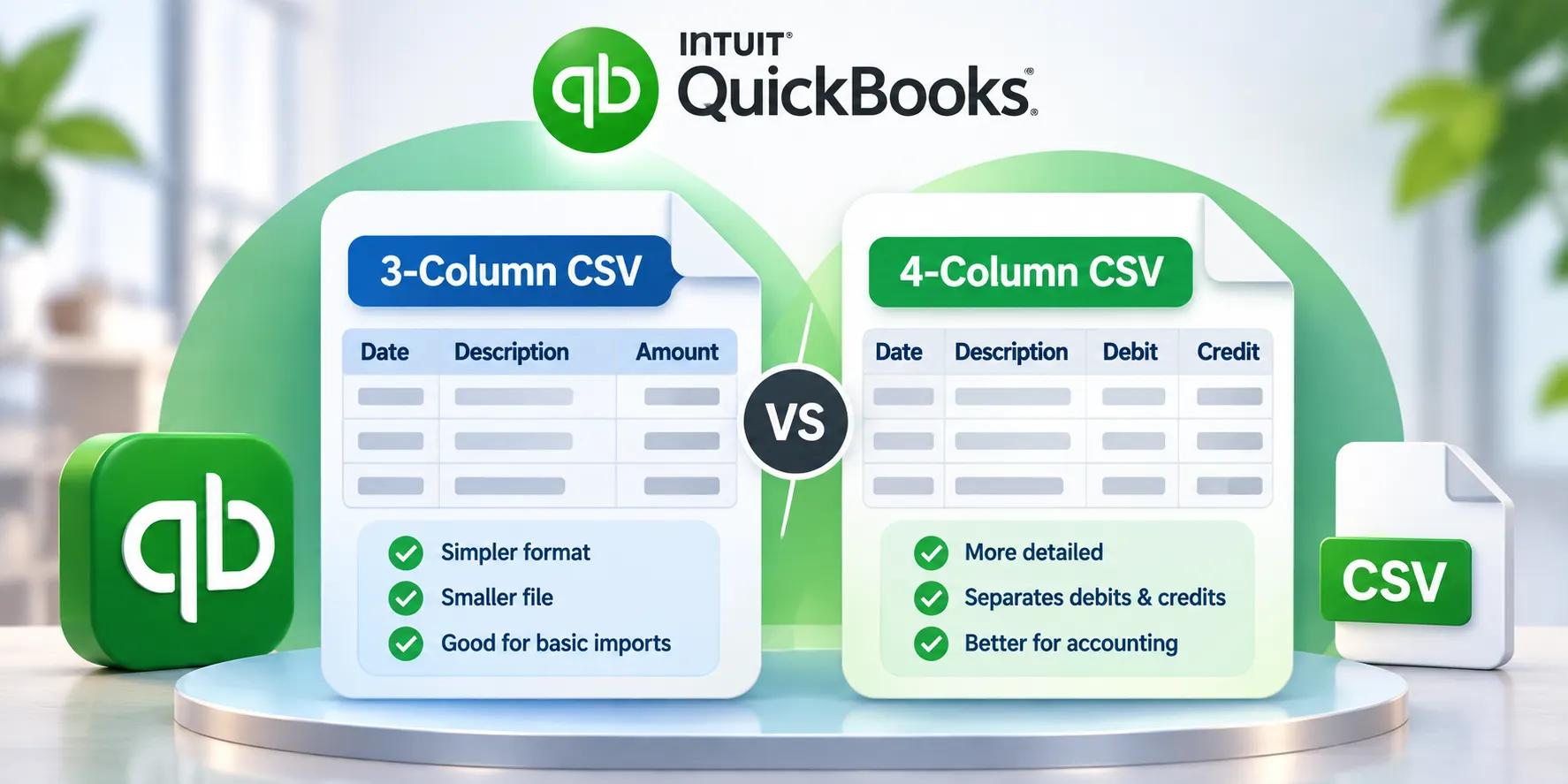
If you upload a CSV, QuickBooks accepts exactly two layouts: 3-column or 4-column. Pick the wrong one, or get one detail wrong, and the upload fails or the money ends up going the wrong way.
The short answer
- Use 3-column when money in and money out are in one Amount column, with withdrawals as negative numbers.
- Use 4-column when the statement has separate money-in and money-out columns and you want to keep them that way.
Both import the same transactions. The choice is about which layout is less likely to go wrong with the data you have.
The two layouts
Intuit's help article lists both.
3-column: Date, Description, Amount
| Date | Description | Amount |
|---|---|---|
| 03/11/2026 | Client payment, Smith Ltd | 1250.00 |
| 04/11/2026 | Office rent | -950.00 |
| 06/11/2026 | Bank fee | -12.50 |
One amount column. Deposits are positive, withdrawals are negative.
4-column: Date, Description, Credit, Debit
| Date | Description | Credit | Debit |
|---|---|---|---|
| 03/11/2026 | Client payment, Smith Ltd | 1250.00 | |
| 04/11/2026 | Office rent | 950.00 | |
| 06/11/2026 | Bank fee | 12.50 |
Two money columns, both holding positive numbers. Each row fills one and leaves the other blank.
Which one should you use?
| Situation | Better choice | Why |
|---|---|---|
| Bank CSV already has one signed amount column | 3-column | No reshaping needed |
| PDF statement with separate withdrawals and deposits columns | 4-column | Mirrors the statement, easy to check line by line |
| You review the file in Excel before import | 4-column | Easier to spot a payment in the wrong column than a missing minus sign |
| Credit card account | Either, but check signs | Card statements reverse the usual meaning of payments and purchases |
| You want the smallest file | 3-column | One fewer column, which helps with the 350 KB limit |
Our usual advice for bookkeepers converting PDF statements: use 4-column if you're going to review the file first, and 3-column if you trust the signs and want the simplest upload.
Watch the Credit and Debit columns
This is the part that catches people. "Credit" and "Debit" mean opposite things depending on whose point of view you take. On a bank statement, a credit is money into the account. In accounting, a debit to a bank account is also money in.
Even Intuit's own 4-column example puts the payment in the Credit column and the deposit in the Debit column. So don't rely on the header names. When you upload, QuickBooks asks you to match the file's columns to its fields. Then:
- look at the preview before you import
- find one deposit you know, such as a client payment, and one withdrawal, such as rent
- confirm each shows up as money received or money spent correctly
If they're reversed, go back and swap the column mapping. That takes seconds; fixing a year of reversed transactions after import doesn't.
In AI Bank Statement's QuickBooks 4-column output, Credit is money in and Debit is money out, from the account holder's point of view, the same way your bank statement reads.
Rules both layouts must follow
From Intuit's QuickBooks Online help on uploading a transaction list:
- File size: 350 KB or less.
- Lines: up to 1,000 transactions per upload. For more, split the date range.
- Language: the file must be in English.
- Columns: exactly 3 or 4, as above. Delete any extra columns, such as Balance or Reference.
- Zeros: leave cells that only contain 0 blank in Amount, Credit or Debit.
- Headers: Credit and Debit should read just "Credit" and "Debit", not "Credit amount".
- Dates: one format throughout. Intuit recommends dd/mm/yyyy.
- Day names: if the bank adds a weekday to the date (for example, 20/11/2022 TUE), remove it.
- Descriptions: Intuit says to remove numbers from cells in the Description column.
- Mac users: save as a Windows CSV.
- Large amounts: a transaction with 12 or more digits can't be uploaded. Enter it manually instead.
Common upload errors and what causes them
| Problem | Likely cause | Fix |
|---|---|---|
| File rejected as too large | Over 350 KB or 1,000 lines | Split by month or quarter |
| Dates in the wrong month | Day and month swapped (03/04 read as 4 March) | Use one date format and match it in the mapping step |
| Deposits showing as expenses | Credit/Debit mapping reversed | Swap the columns in the mapping step |
| Upload error on amounts | Zeros instead of blanks, currency symbols or text in amount cells | Leave zero cells blank and keep amounts numeric |
| Duplicate transactions | File overlaps dates the bank feed already brought in | Start the file the day after the last feed transaction, or before the feed began |
| Card payments shown as spending | Card file uploaded to a bank account | Upload card statements to the credit card account |
Credit card statements
Intuit notes that credit card CSVs can look reversed: a payment to the card may show as a negative amount because it reduces the balance owed.
The fix is to choose the credit card account, not a bank account, when uploading. QuickBooks then treats the signs correctly. The credit card statement converter produces the same 3- and 4-column layouts for card statements.
QuickBooks can read PDFs now. Why convert?
Intuit's help says QuickBooks Online can also accept an account statement as a PDF or image, as long as it's in English. That's worth trying for a single clean statement.
Converting to CSV first is still useful when:
- you want to review every line in Excel before anything touches the books
- you're handling a year of statements across several accounts
- statements are scanned or messy
- you need the same data for Xero, Excel or a working paper as well
From PDF statement to QuickBooks CSV
- Collect the official PDF statements for the period.
- Upload them to AI Bank Statement. Use OCR mode for scans.
- Choose QuickBooks CSV (3-column) or QuickBooks CSV (4-column).
- Download the file. Dates come out as dd/mm/yyyy and zero values are left blank, matching Intuit's guidance.
- Open it in Excel and spot-check a few rows against the PDF.
- In QuickBooks, go to Bank transactions, select Link account ▼ › Upload from file, choose the account, map the columns, and check the preview.
If your client has a year of statements with more than 1,000 transactions, convert and upload one quarter at a time.
Country notes
- Canada: QuickBooks Online Canada uses the same 3- and 4-column rules. Canadian bank exports vary a lot; see the Canada guide and the bank guides for RBC, TD, National Bank, Tangerine and EQ Bank.
- United States: US banks often export MM/DD/YYYY. Keep one format throughout and confirm it in the preview. See the US guide.
- UK and Australia: day-first dates match Intuit's dd/mm/yyyy recommendation.
Using Xero instead? See how to import a bank statement into Xero.